 1
1
Introduction
The following blog post will showcase some enumeration tactics for locating high-value variables in game memory along with class attributes.
By the end of the blog post we will locate the following variables in Killing Floor 1 and map them to their corresponding C++ class:
- Gravity
- Level Timescale
- Jump Height
- Collision Flags
- Player Speed
- Weapon Bob and Sway
- Collision Height and Width
- Current and Max Weight
- Current Weapon
- Gun Drawing Modifiers
- Weapon Zoom Scale
- Actor Ambient Glow
Enumeration Tactics
-
Dynamic Known Value Scanning: Identifying specific variables by searching for “exact values” that change predictably (e.g., health, ammo, or carry weight).
-
Dynamic Unknown Value Scanning: Identifying variables by searching for “increased/decreased values” that change unpredictably (e.g., world coordinates, velocity, or camera pitch).
-
Dynamic Semi-Unknown Value Scanning: This technique targets variables where the exact value is hidden, but the state is controllable. For example, when searching for the
CurrentWeaponpointer, we may not know the memory address of the weapon object itself, but we know it remains static while the weapon is equipped. By switching weapons and using “Changed Value” vs. “Unchanged Value” (or “Compare to First Scan”) filters, we can isolate the specific pointer that updates in sync with our equipment changes. -
Constant Variable Scanning: Filtering for static values within a memory block while performing in-game actions to identify fixed attributes (e.g., gravity scales, player height, or hitbox dimensions).
-
Memory Fuzzing: Performing bulk “fuzzy” changes to specific data types (Floats, Integers, Bools) within a target memory range. While this carries a high risk of crashing the client, it is a highly effective way to trigger unintended behavior and reveal hidden offsets.
-
Utilizing Source Code: Some games have fragments of their engine source code as public to help game modders create new features. We can attempt to leverage the open source documentation to replicate in-game functions or enumerate potential offsets.
- Utilizing In-Game Commands: Some video games have a console that allows commands to be run, if we are able to modify attributes such as jump height, player speed, or game speed we can track the corresponding values in Cheat Engine and manually set them without having to enable cheats in-game.
Enumeration via Cheat Engine Scanning
Scanning the Local Pawn’s Memory Region
Take a look at the following Cheat Engine Screenshot. My Current Health variable is at the memory location
0x2B285480with the pointer to the local pawn being at0x2B285000
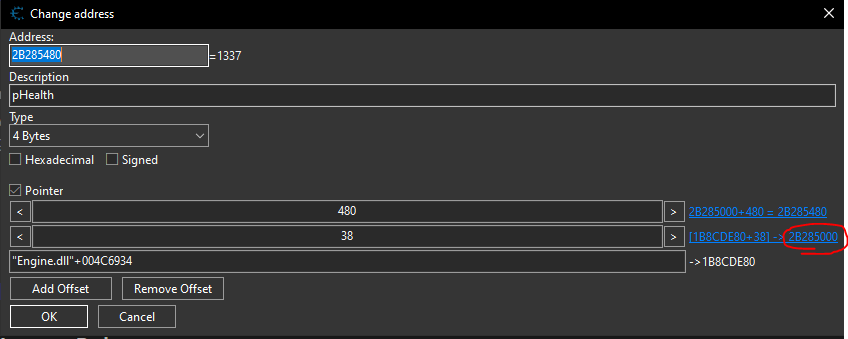
In this example, our Local Pawn starts at 0x2B285000. Based on typical Unreal Engine class sizes, a range of 0x1000 (4096 bytes) is usually more than enough to cover all relevant player variables.
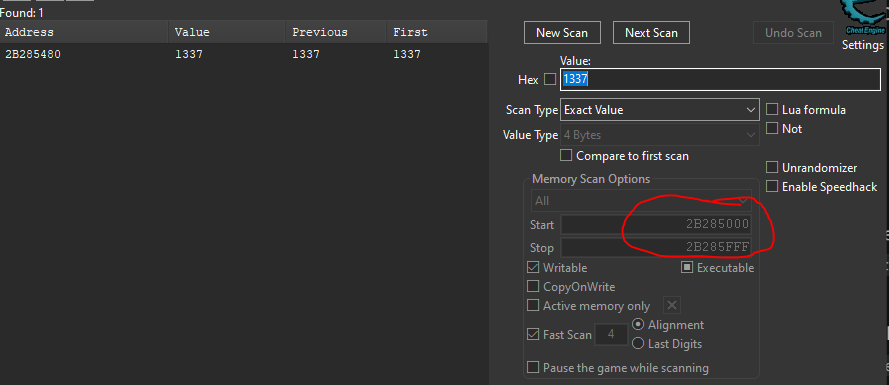
We set our scan limits as follows:
- Start:
0x2B285000 - Stop:
0x2B285FFF
By searching for the “Exact Value” of our Health (1337) within this restricted range, we eliminate garbage results. As seen below, Cheat Engine returns the single, definitive address for our health variable: 0x2B285480.
Weapon Sway and Weapon Bob
Sway
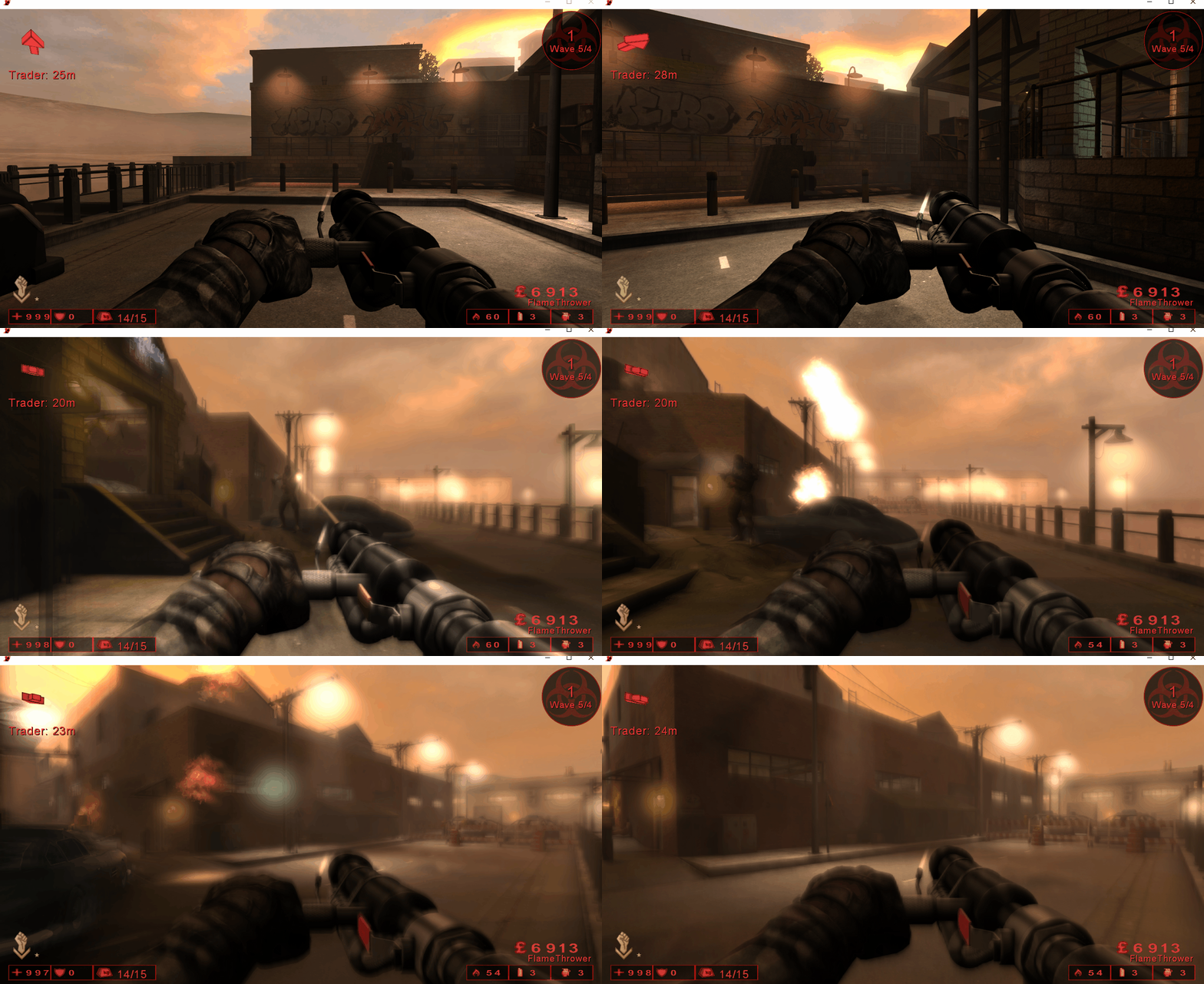
I found this by utilizing the both the Constant Variable Scanning method and the memory fuzzing method by searching for constant floats within the players memory space and performing bulk changes on the returned float.
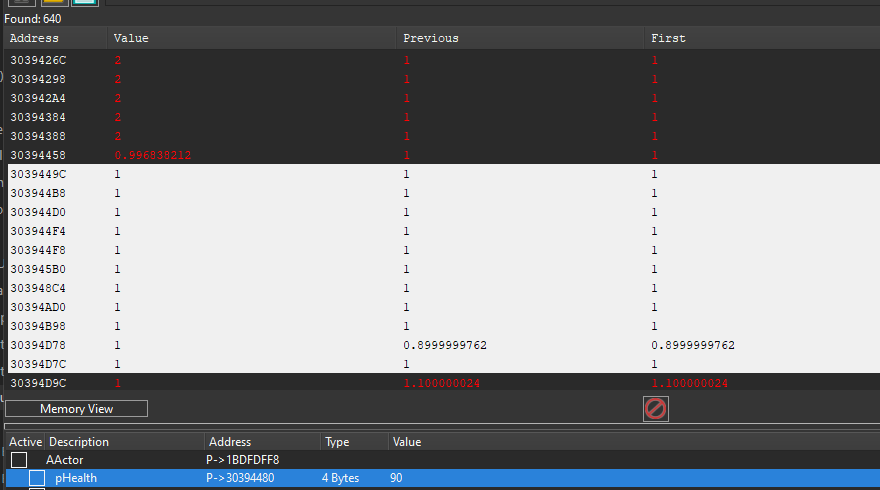
I noticed my weapon swaying way more back and forth as I walked so I added to my cheat table and called it pSway.
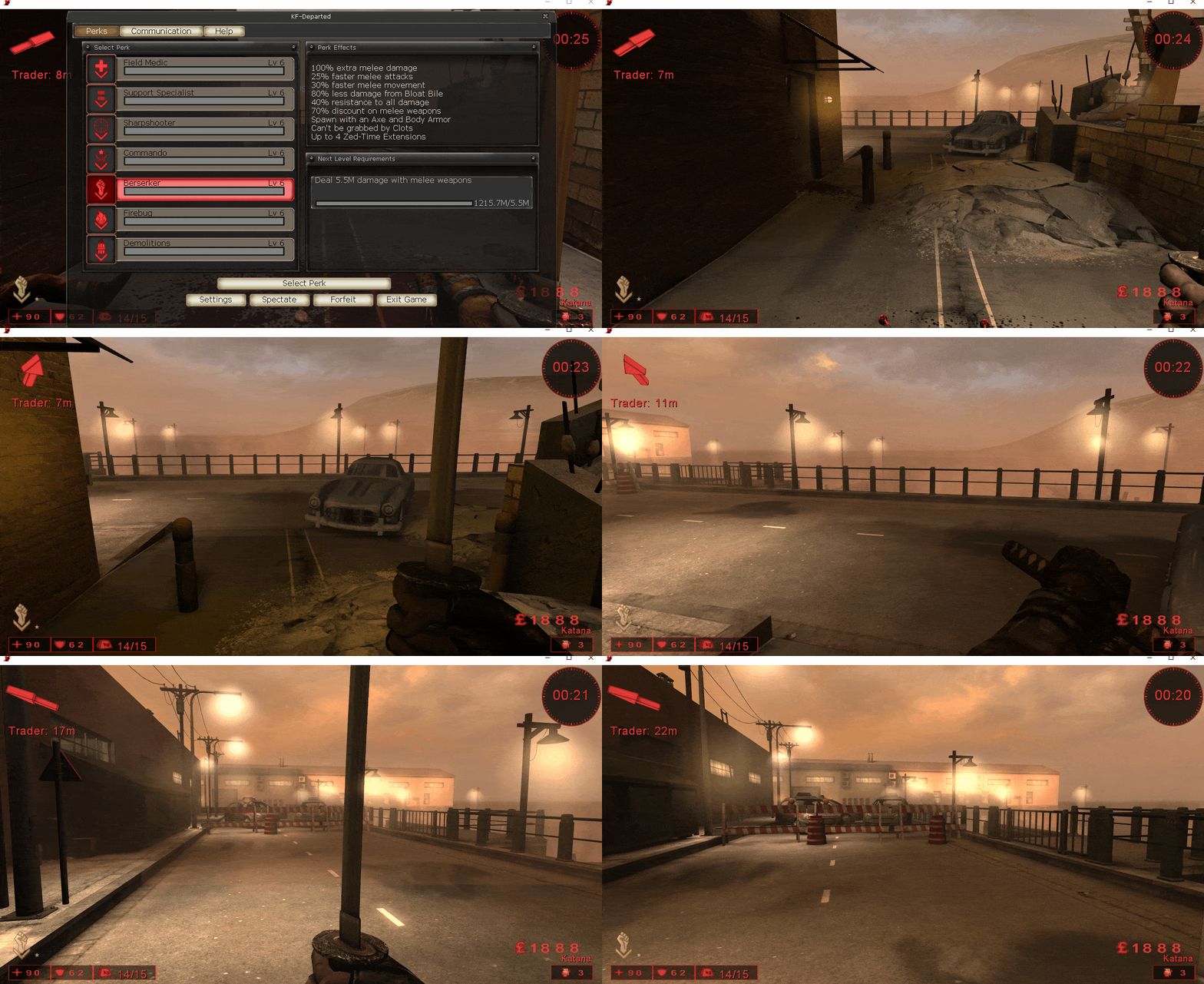
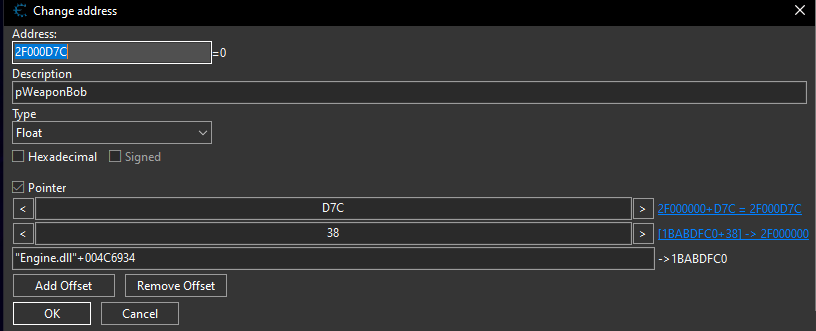
To find the offset for our pSway variable, we perform hexadecimal subtraction between the target memory address (0x30394D78) and the base address of the player object (0x30394000). This calculation reveals a relative offset of 0xD78.
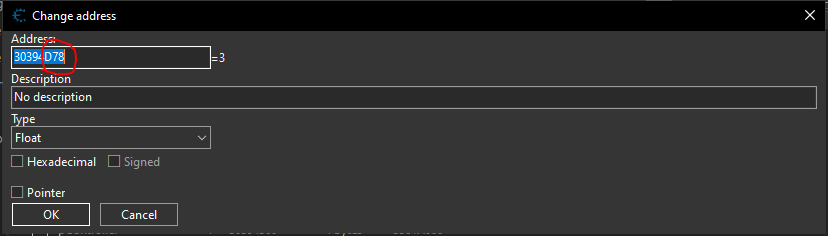
I duplicated the health offset and changed it from 0x480 to 0xD78 and named it pSway:
Bobbing
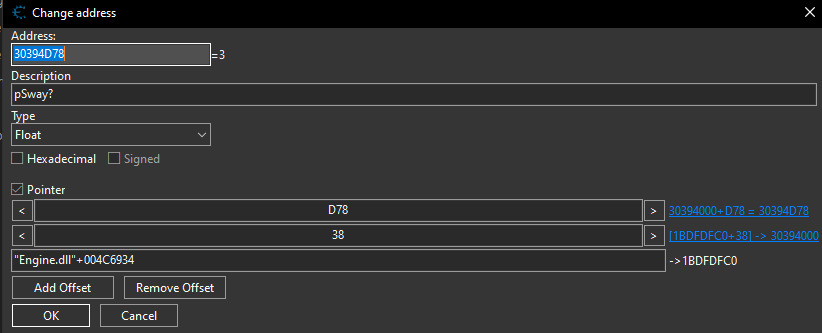
I then went to the next offset over: 0xD7C and set it to zero and my weapon stopped bobbing when I walked around:
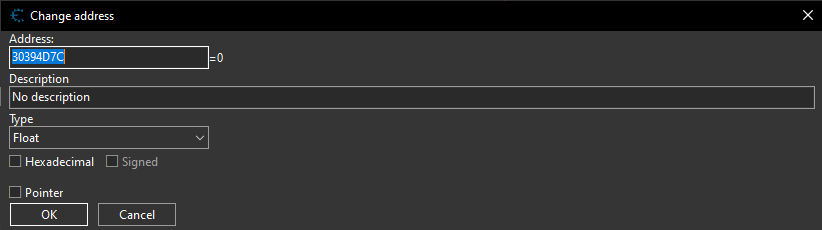
Then I duplicated the pSway pointer and changed the offset from 0xD78 to 0xD7C
Player Speed
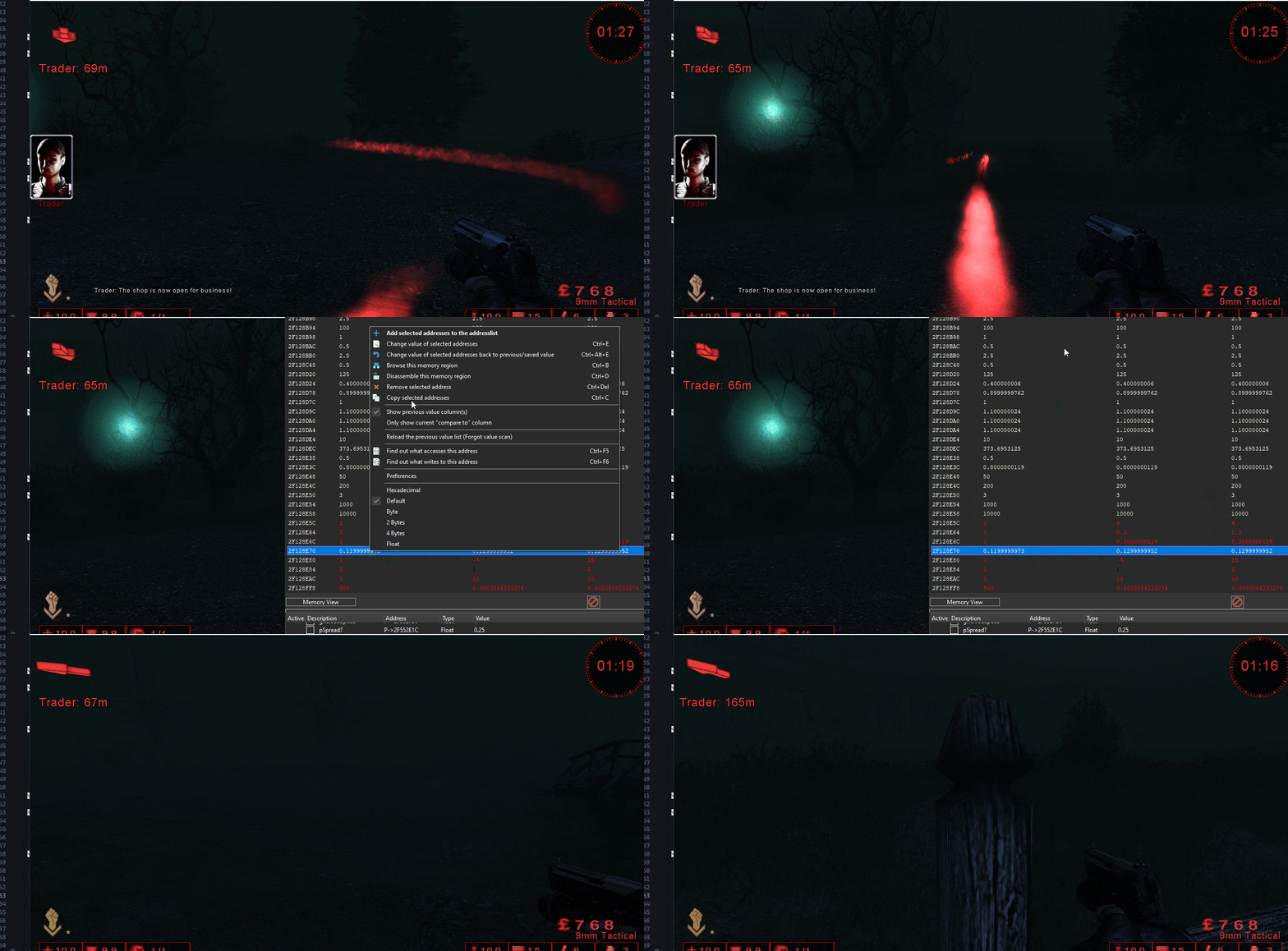
I found the player speed variable by scanning for constant floats and memory fuzzing the results, and eventually I found the address: 0x2F128E70. This only gave me extreme speed when I set it to a value over or equal to 500:
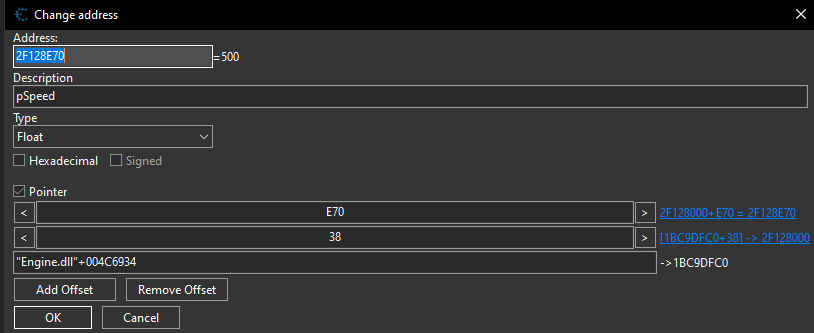
Then we calculate the offset the same way as before:
0x2F128E70 - 0x2F128000 = 0xE70
Finding Max Weight and Current Weight
During a targeted scan for player attributes, I identified the Max Weight and Current Weight variables by searching for 4-byte integers within the local pawn’s memory range.
I first identified a potential candidate at 0x2E497E84. By manually overriding this value to 100, I observed my in-game Current Weight immediately jump from 1 to 100, confirming the address. I inspected the addresses immediately surrounding my find. Just 4 bytes prior, at 0x2E479E80, I discovered the Max Weight variable.
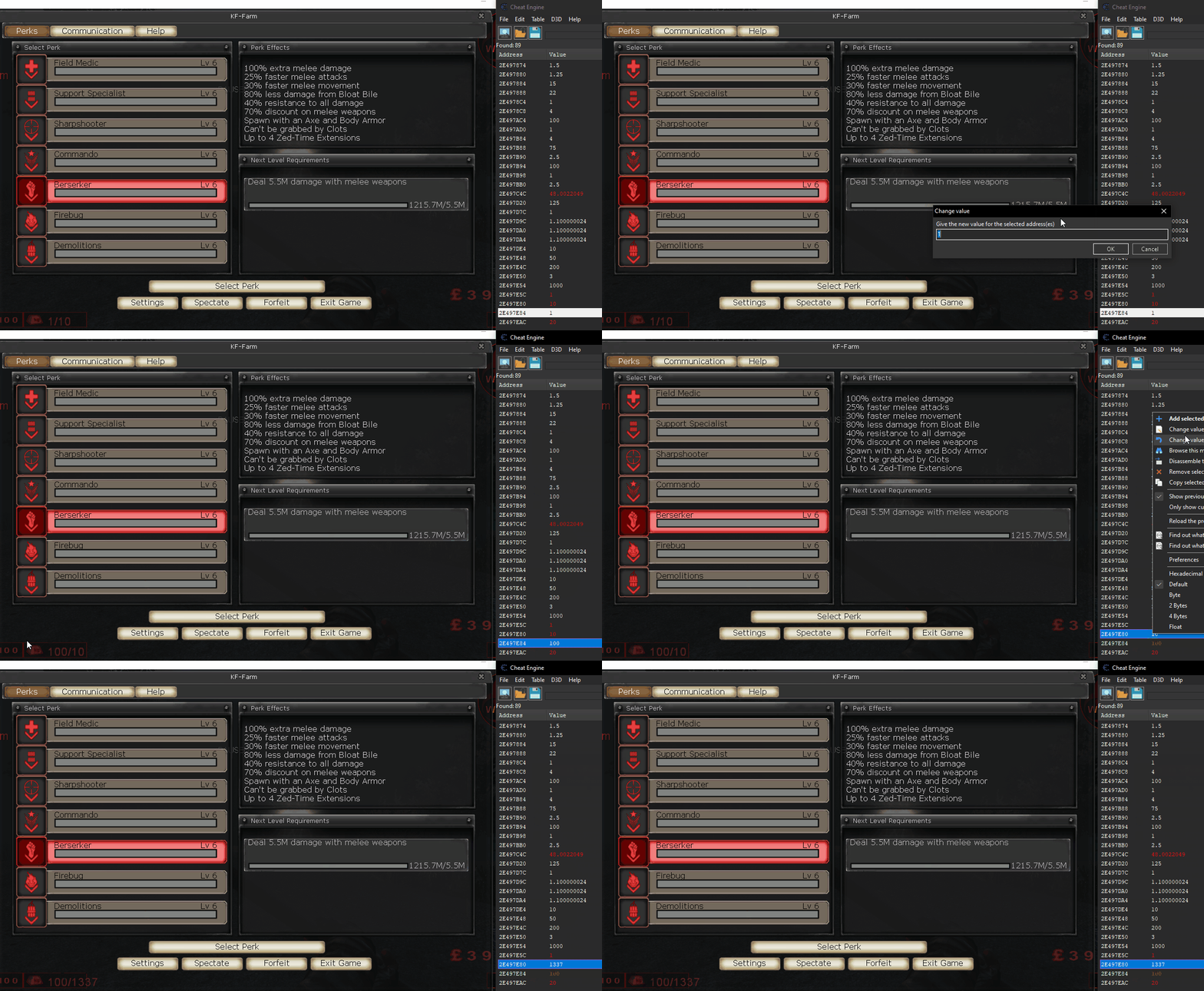
The next step was to convert these addresses into a permanent pointers. Since the base of our APawn object was located at 0x2E479000, simple hexadecimal subtraction resulted in a relative offset of 0xE80 for the max weight.
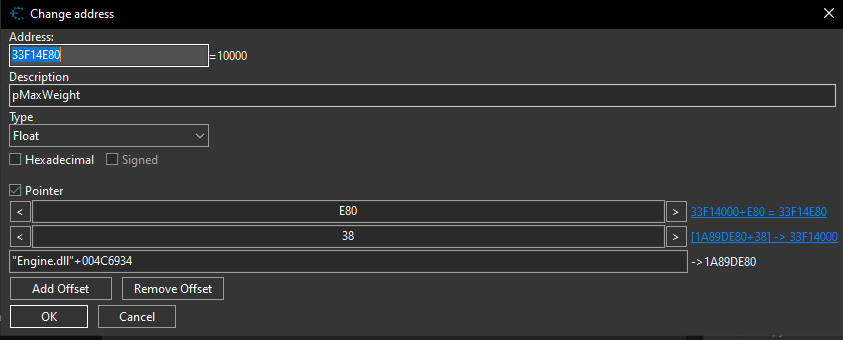
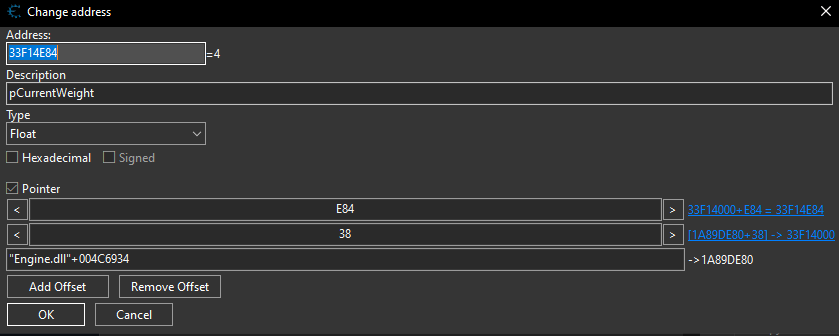
Then by hopping to the next offset over (0x84) I was able to find the current weight variable.
Finding Current Weapon
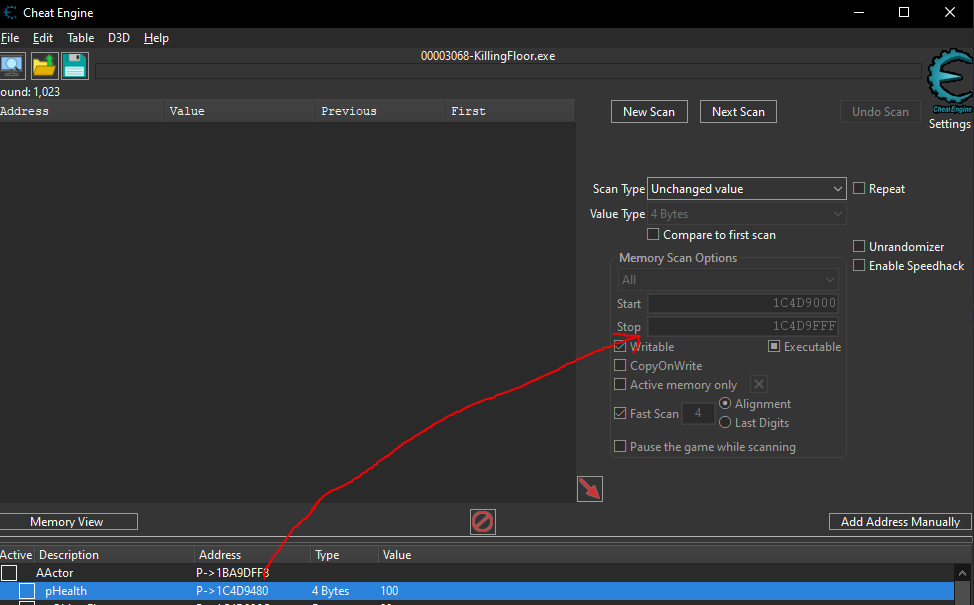
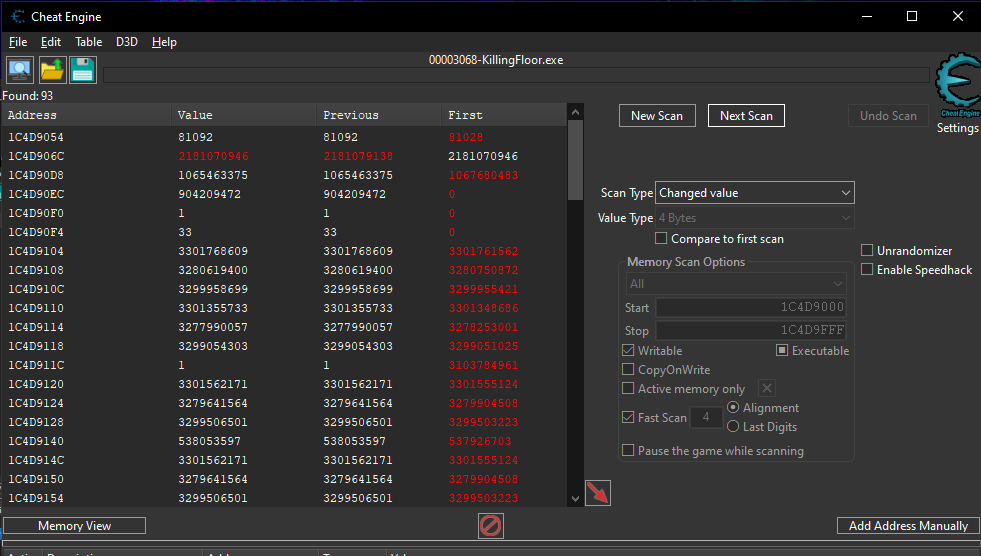
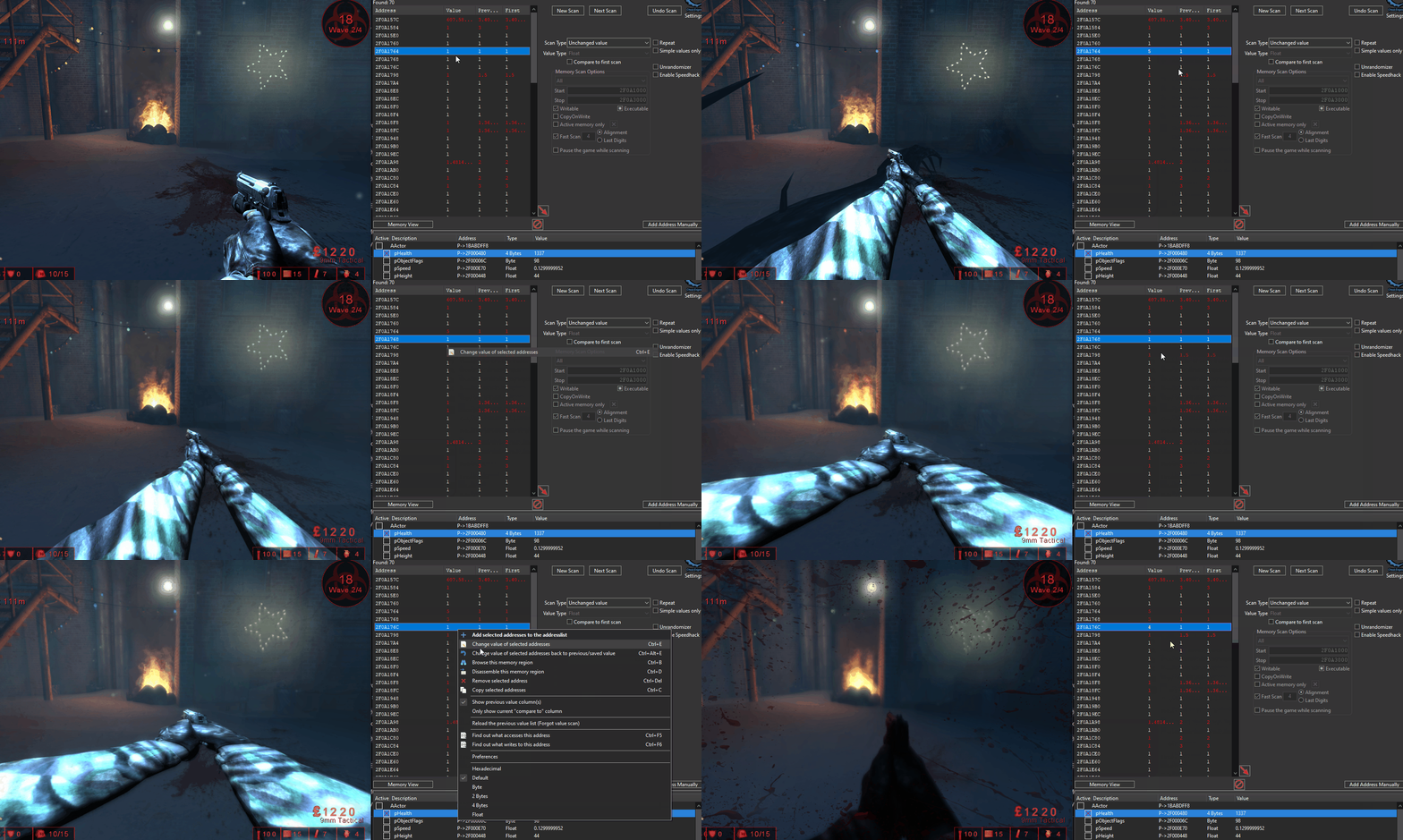
Our player class should hold a pointer to the current weapon object in-game, this weapon could have attributes like ammo, reload animation speed and recoil for example. To find the offset of this I used the Dynamic Semi-Unknown Value Scanning enumeration tactic I mentioned in the introduction. Since we are able to control the state of the active weapon. I started off by scanning for a 4 bytes unknown value in the local APawns memory space:
I then swapped weapons and scanned for a changed value:
Then swapped back to the original value and scanned for a unchanged value compared to first scan:
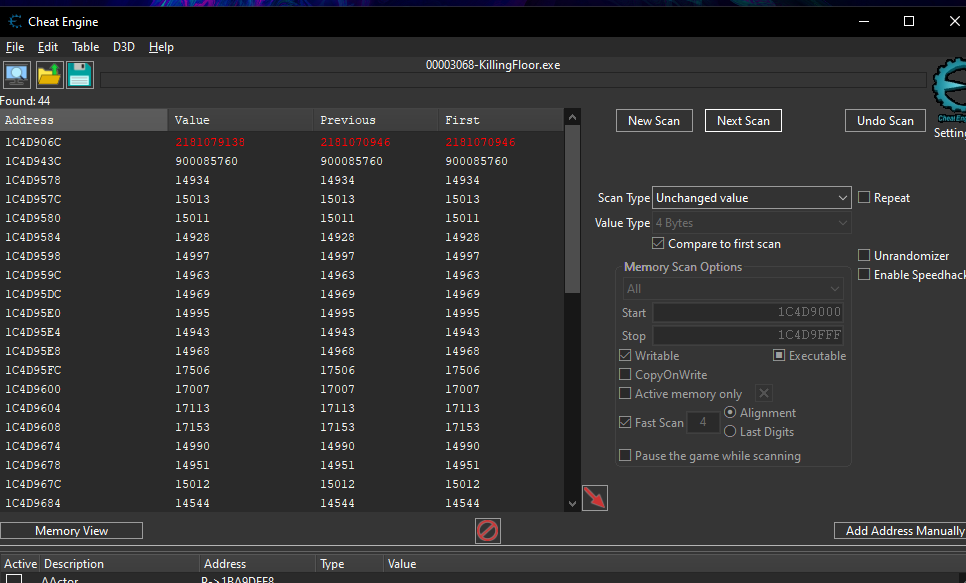
The top value stood out to me as it was way larger than the others so I added it to my cheat table.
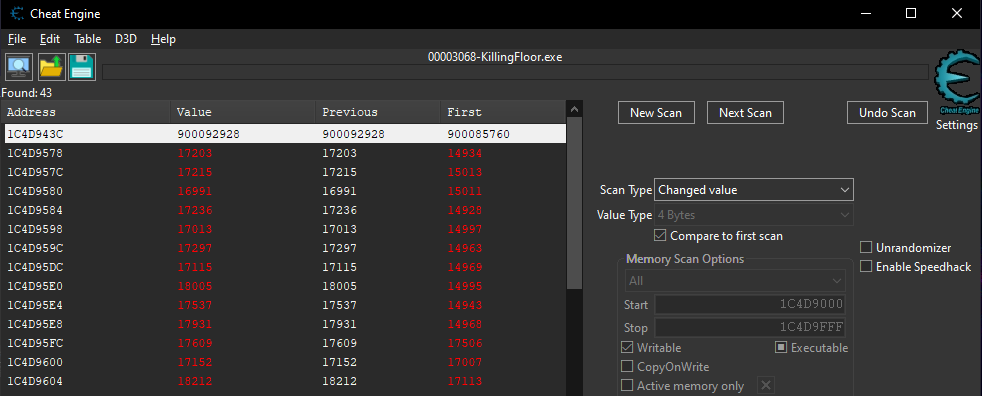
I then converted it to Hex and it looks just like a base pointer!
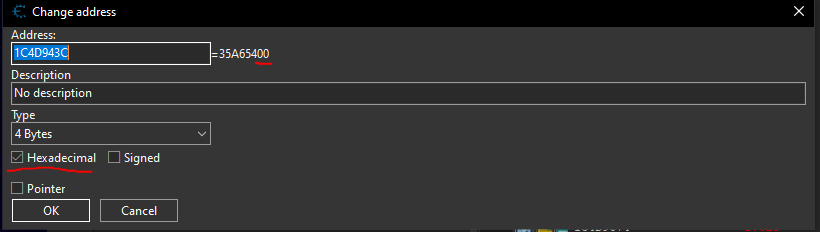
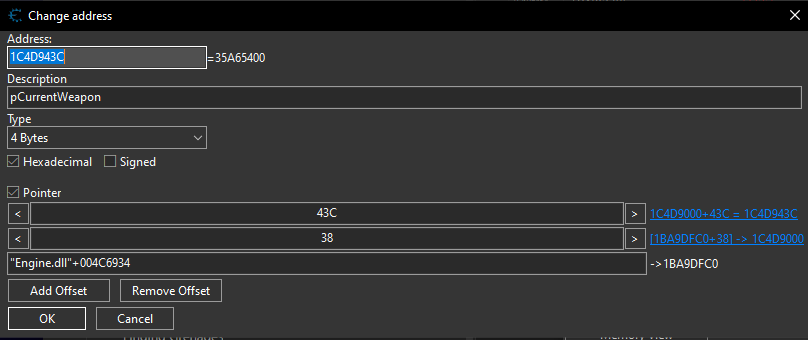
Now we can add the offset 0x43C to our player class for our current weapon:
Finding Weapon Offsets
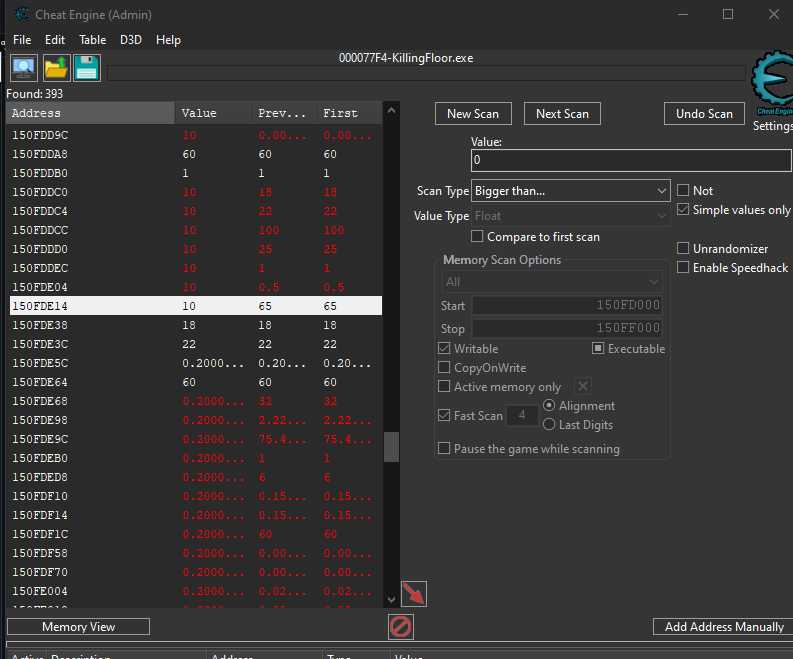
I then started enumerating the weapons offsets by scanning the weapons memory region starting at the base pointer of 0x150FD000:
Zoom
I found a zoom distance variable where the higher I changed the variable the less the weapon zoomed in:
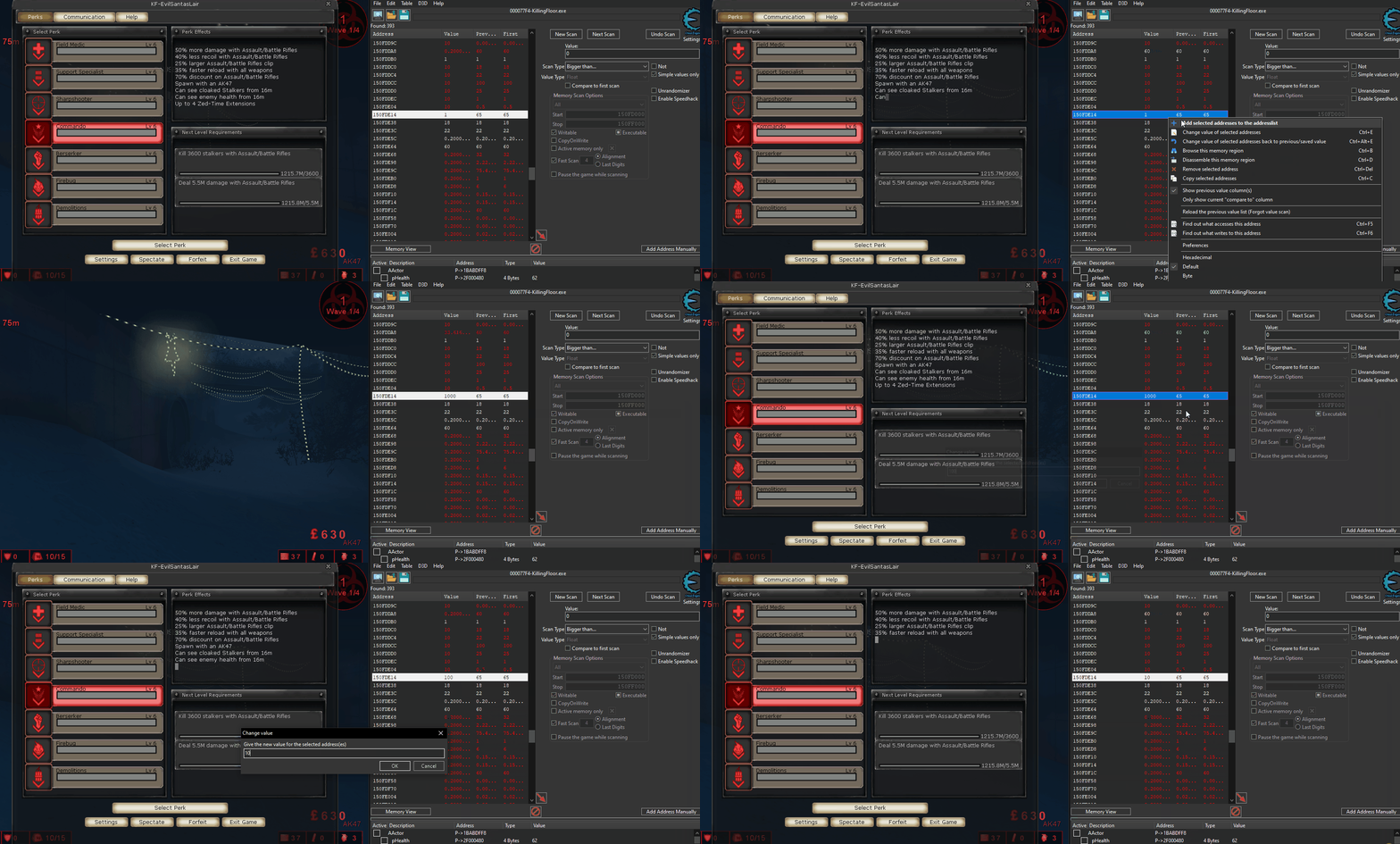
This memory address was located at: 0x150FDE14 and the base pointer is at 0x150FD900. Meaning we need to do some subtraction to figure out the offset luckily the windows calculator is able to help us!
0x150FDE14 - 0x150FD900:
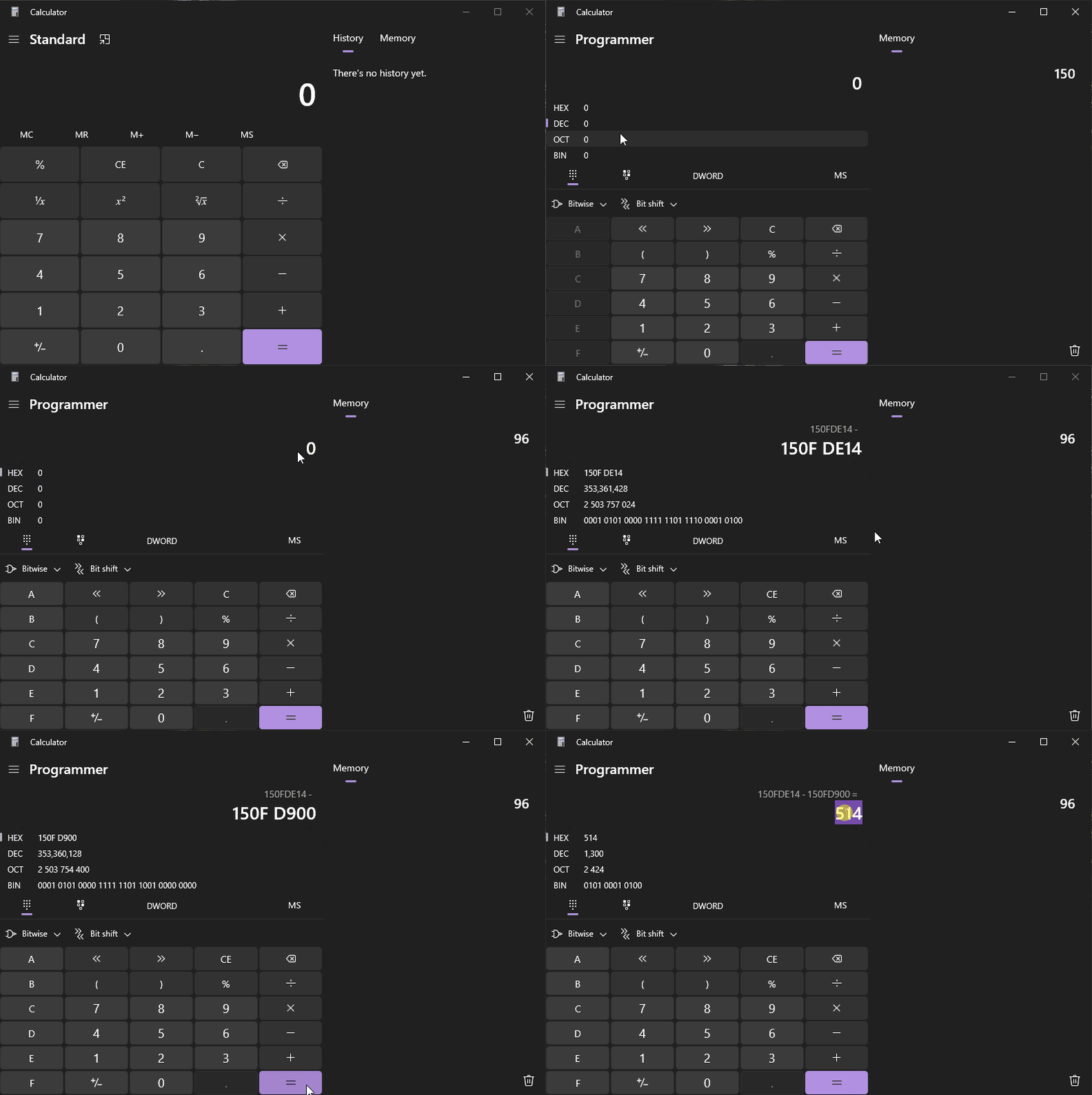
Now we can add this offset to our Cheat table:
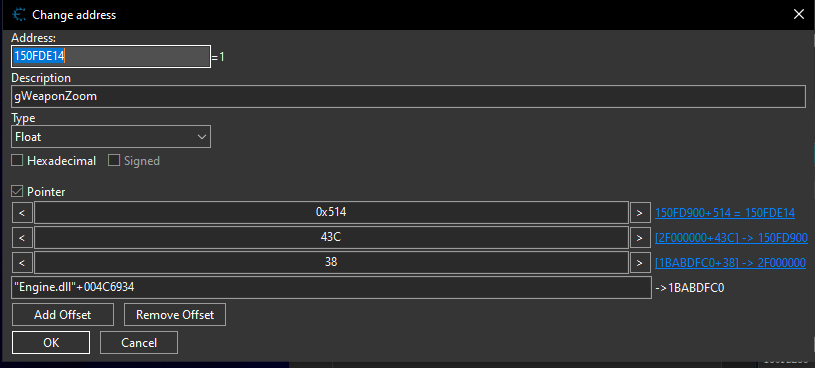
Weapon Draw Scale Modifiers
By utilizing memory fuzzing I found 4 floats that when written to modify how the gun presented to the screen. I eventually figured out that it was the weapon width, height, depth and scale.
These variables are right next to each other in memory:
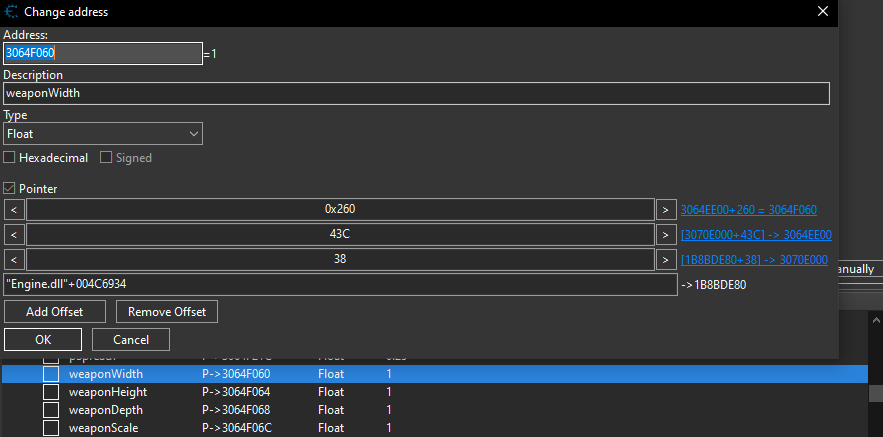
Enumerating Variables Using Cheat Commands and the Source Code
Actor Collision
We can utilize the showdebug command to list a bunch of statistics about our current user. I noticed in the output a Boolean variable for collision with actors.
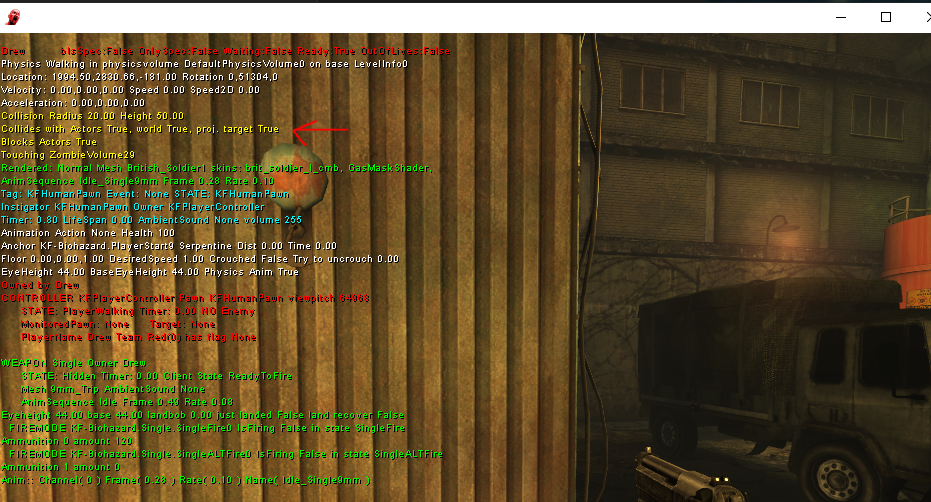
I opened up the source code for the Pawn class and searched for “Collide”, and I found the variable bCollideActors:
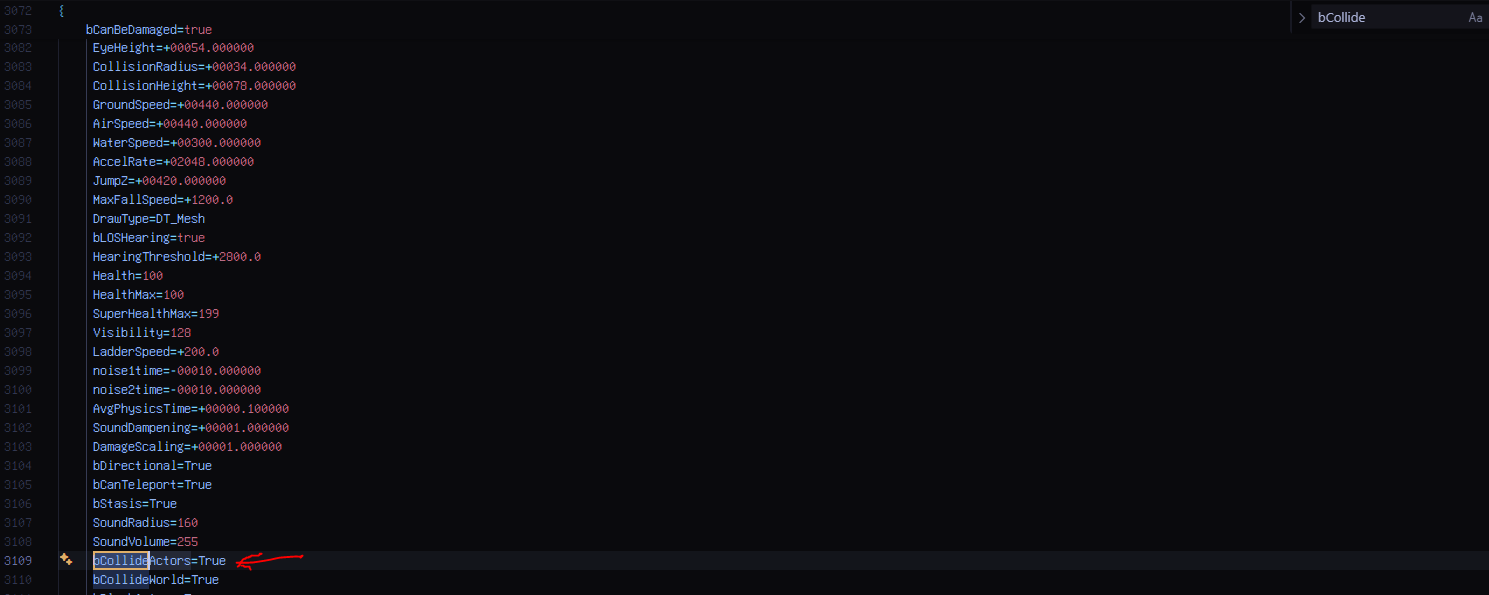
I then utilized the following command to disable actor collision allowing me to walk through enemies: set Pawn bCollideActors False
I wasn’t however able to find the Boolean for bCollideActors in memory, but I did find some type of bitwise operation flag for collision. When bCollideActors is False, the memory address had the value of 230, otherwise it was 231.
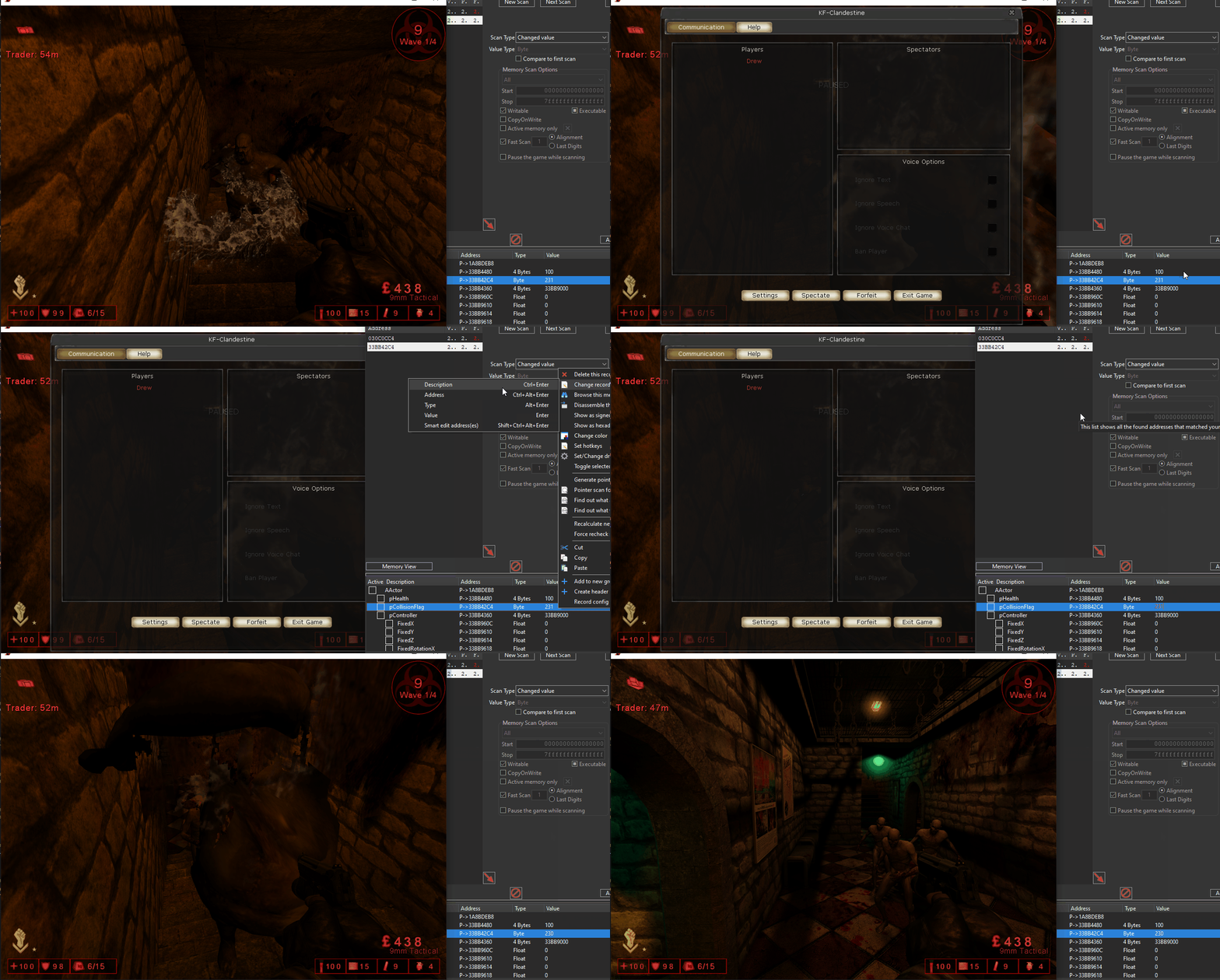
Unfortunately I have encountered a lot of crashes using this variable, even when just writing to it once. So I started playing around with the value and eventually I found that if I set it to 131 I was still able to walk through enemies, and my game didn’t crash!
Example 230 Crash:
Assertion failed: Actor->bCollideActors || GIsEditor [File:.\UnOctree.cpp] [Line: 1460]

History: FCollisionOctree::RemoveActor <- ULevel::FarMoveActor <- APawn::actorReachable <- FSortedPathList::findStartAnchor <- APawn::findPathToward <- AController::FindPath <- UObject::ProcessEvent <- (KFPlayerController KF-Forgotten.KFPlayerController, Function KFmod.KFPlayerController.Timer) <- APlayerController::Tick <- TickAllActors <- ULevel::Tick <- (NetMode=0) <- TickLevel <- UGameEngine::Tick <- Level Kf-Forgotten <- UpdateWorld <- MainLoop <- FMallocWindows::Free <- FMallocWindows::Realloc <- 726F6F6C 0 FArray <- FArray::Realloc <- 0*2 <- FMallocWindows::Free
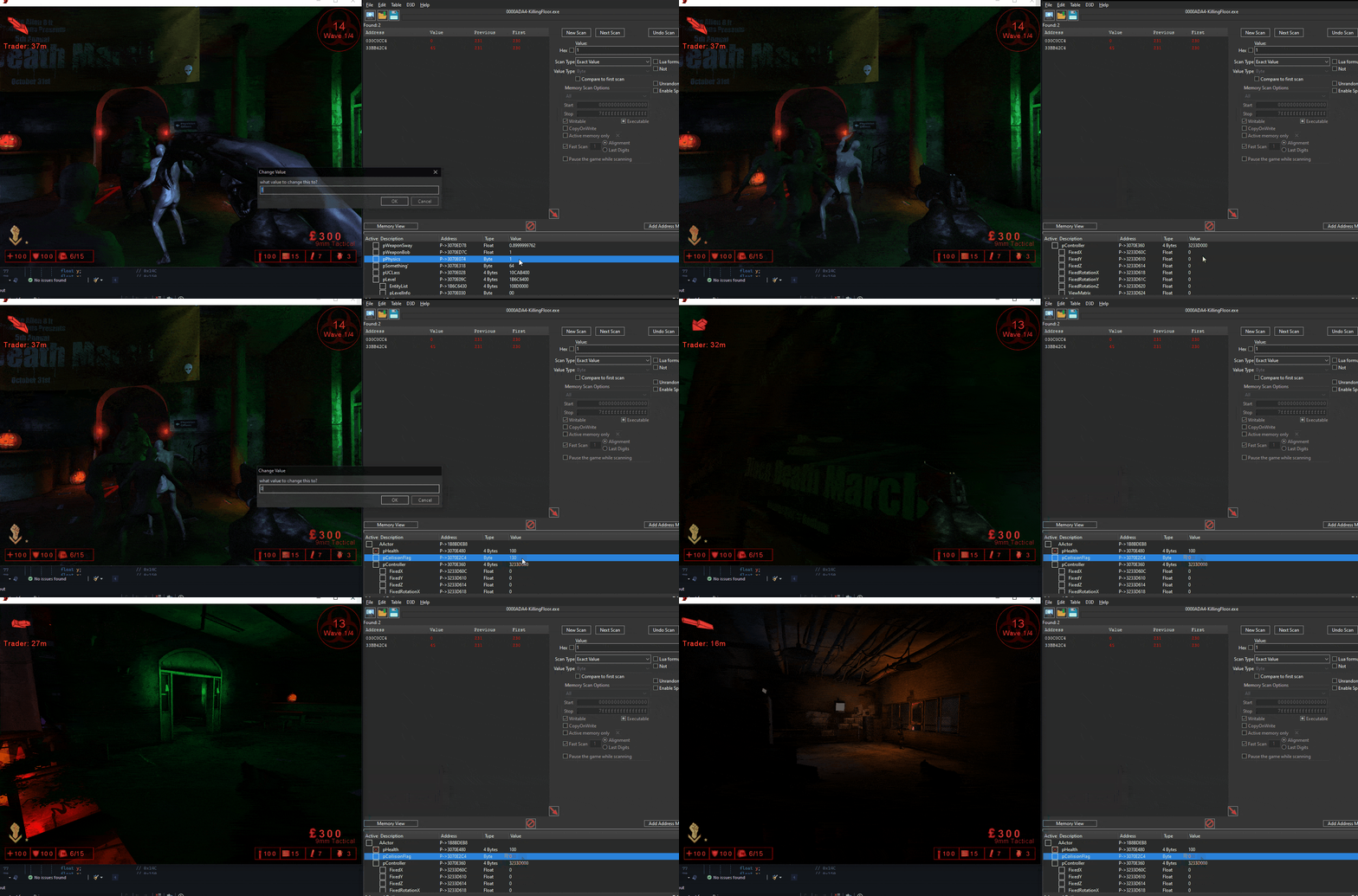
Since this is a bitwise operator lets try to keep messing with it to see if we can have the ability to also walk through walls. I set my Physics state to 4 (PHYS_FLY) then set the collision flag to 0 and I was able to fly through the walls!
Ambient Brightness
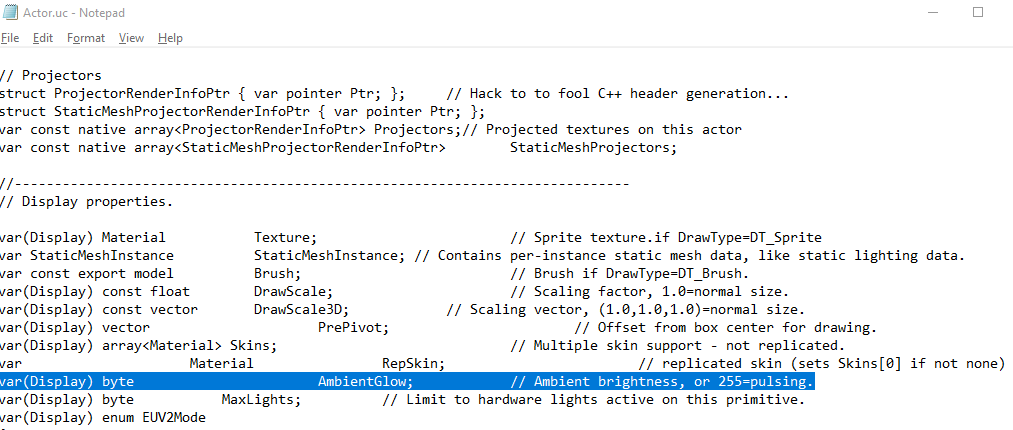
I was browsing the source of the Actor class and found a byte called AmbientGlow a comment next to it mentioned how setting it to 255 would cause a pulsing glow, so it piqued my interest.
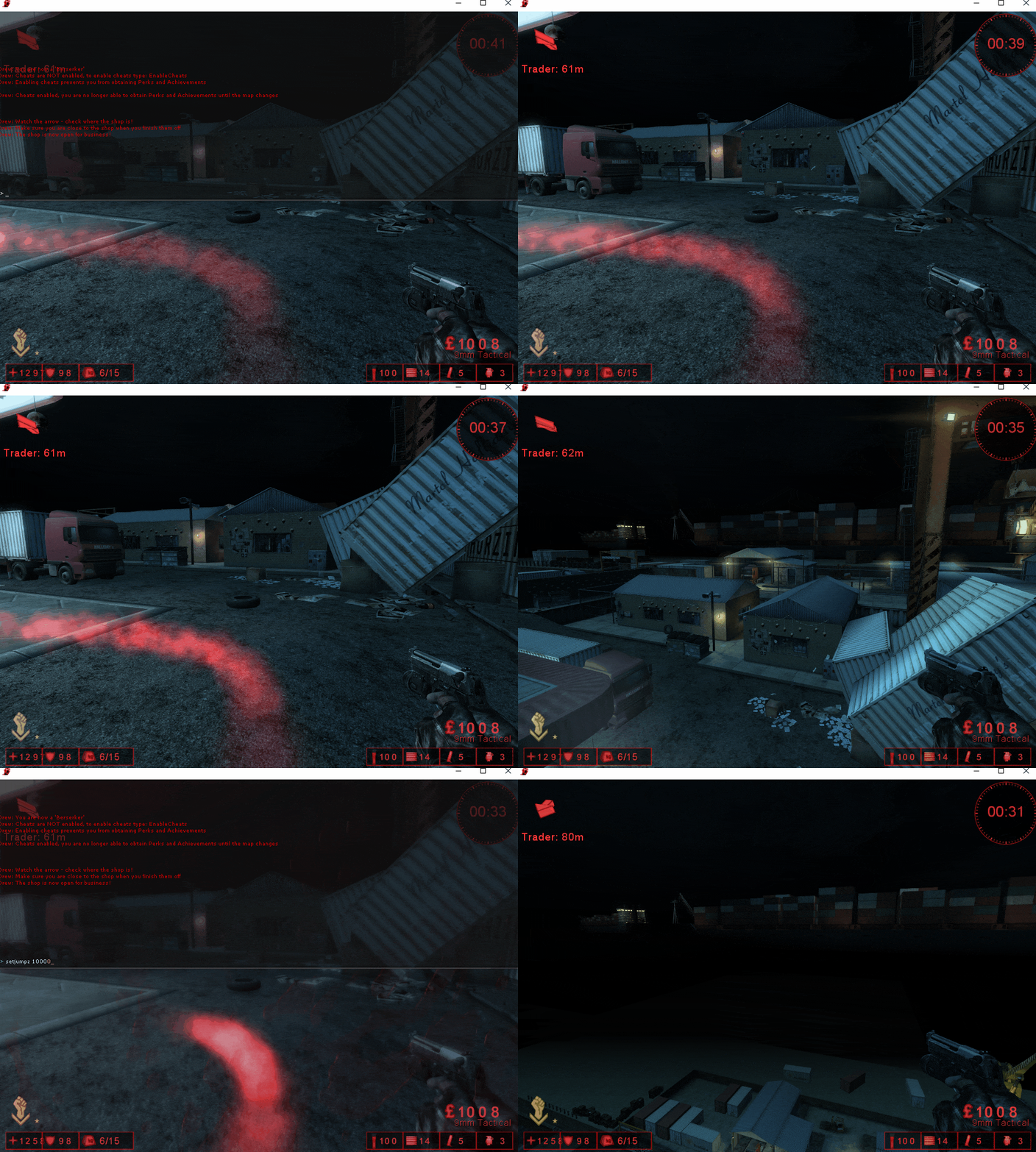
I then hopped in-game and utilized the following command to set all AActors in the game to have an ambient glow of 255, and we all started glowing!
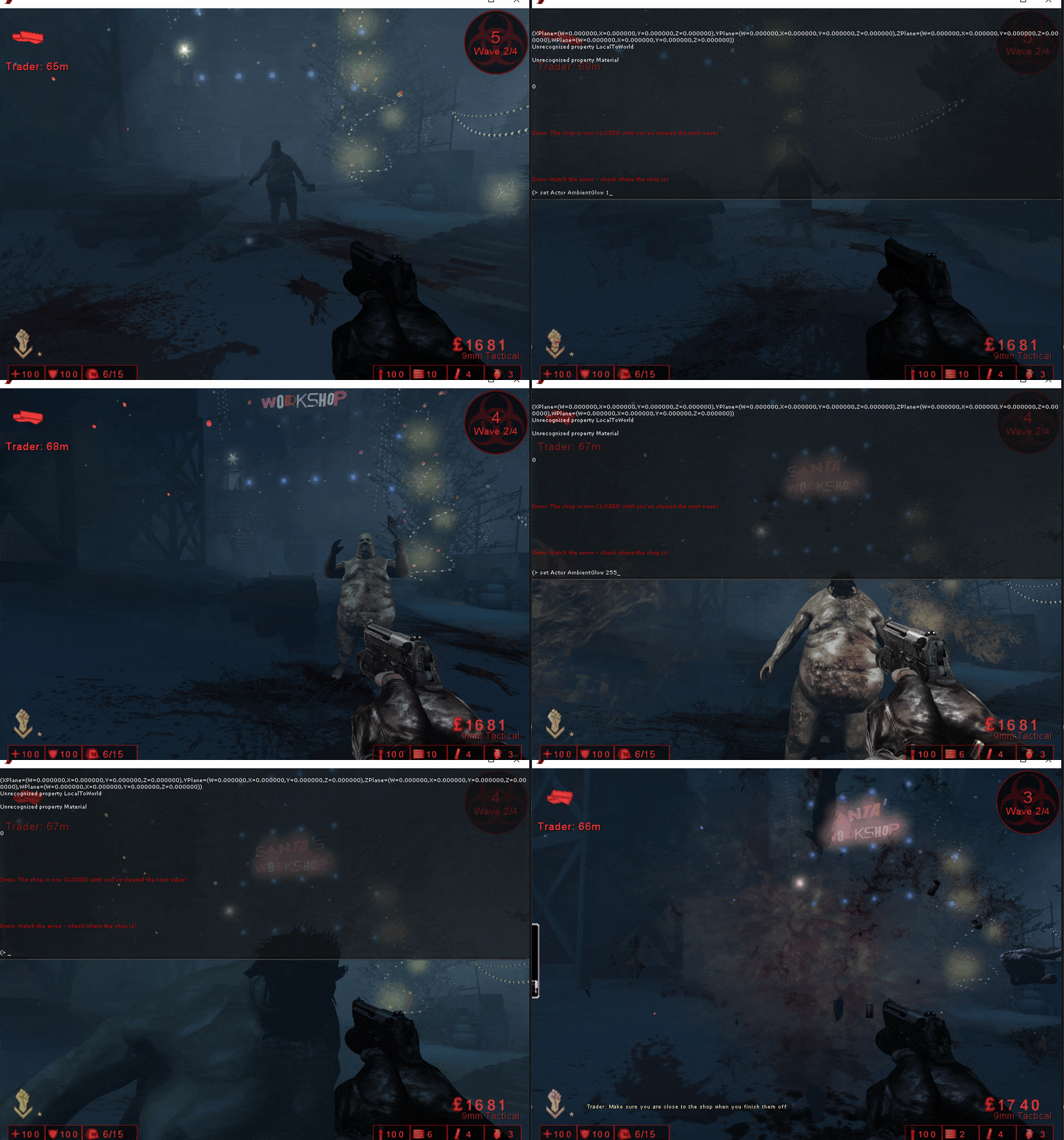
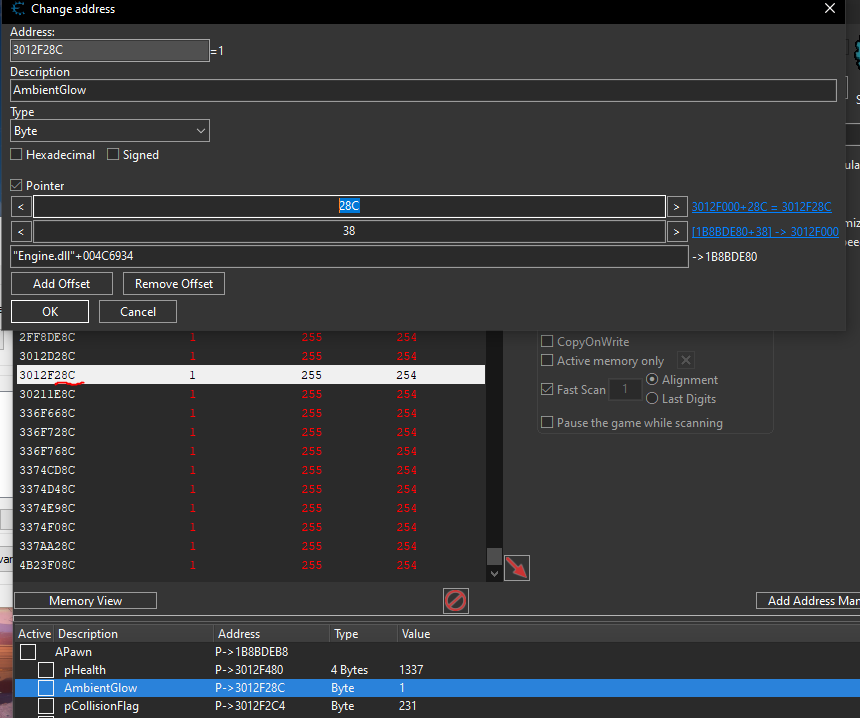
Adjusting it in-game, adjusts all Pawns brightness so I needed to find the corresponding variable within my players memory space. I found the offset below, which when I set the value for my own character does nothing, but when I apply it to other pawns, it does allow them to glow!
Gravity
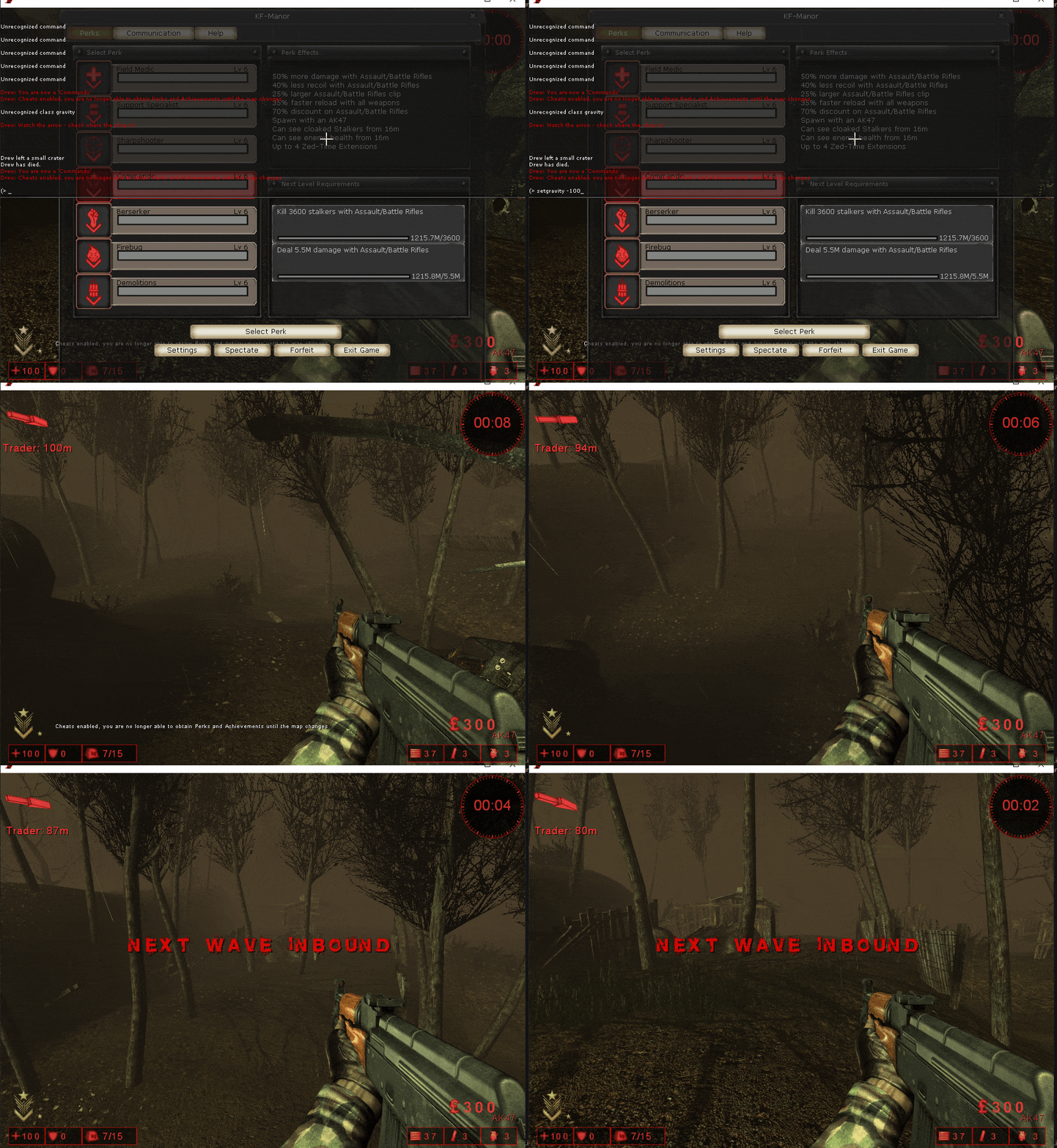
I utilized the command console to set the games gravity levels for different floats, scanning the exact value in Cheat Engine.
Command: setgravity x
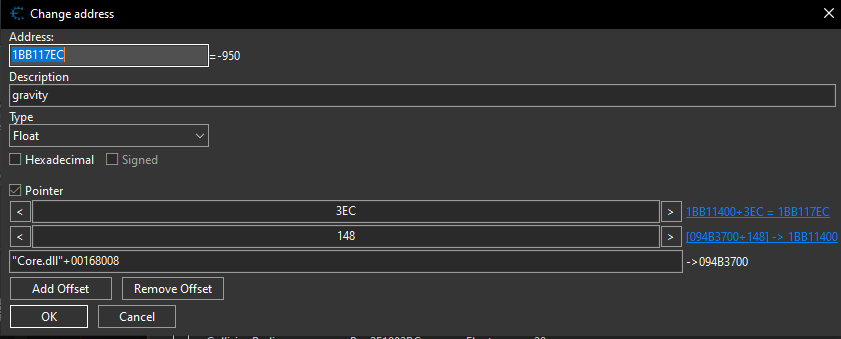
I found the following stable pointer for the game gravity:
Player Jump Height (jumpz)
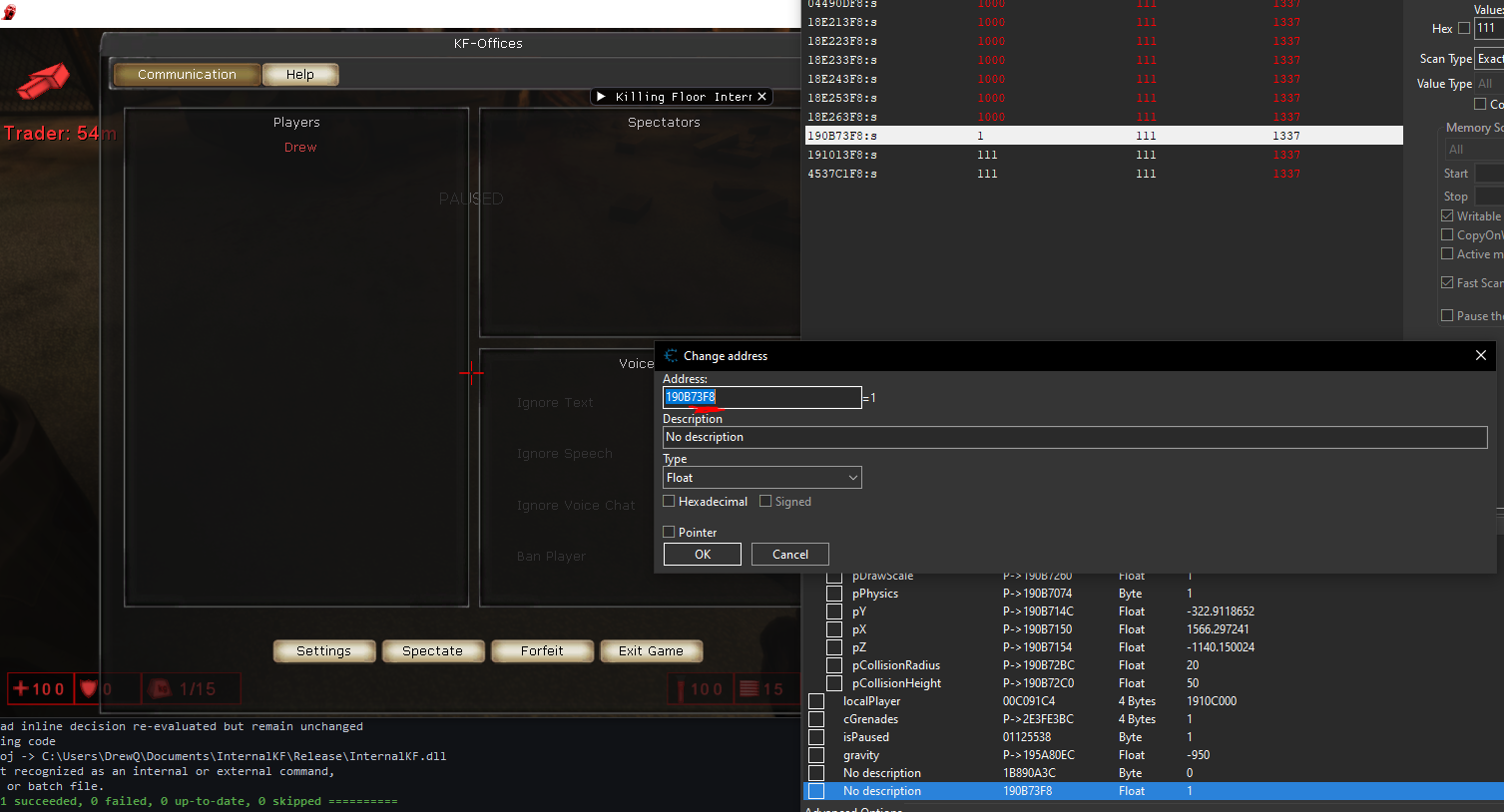
Killing Floor also offers a command to set the players jump height:
Command: setjumpz x
Finding the memory address of our JumpZ:
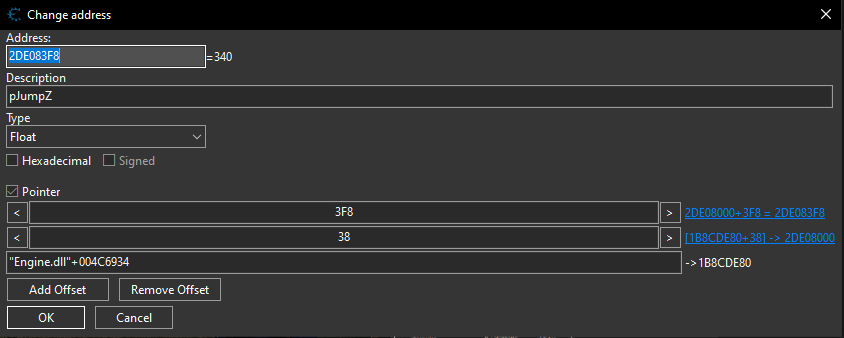
Adding it to Cheat Engine:
Level Timescale
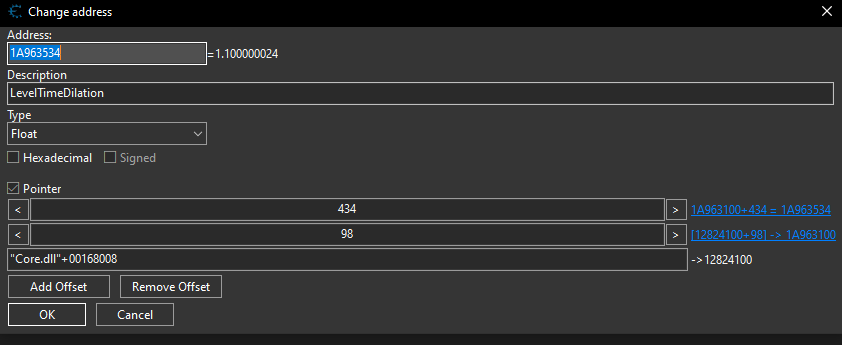
I found a command online, set LevelInfo TimeDilation x, to mess with the level’s tick rate. The game also has a slomo command that does the same thing, but I couldn’t find a reliable pointer to it.
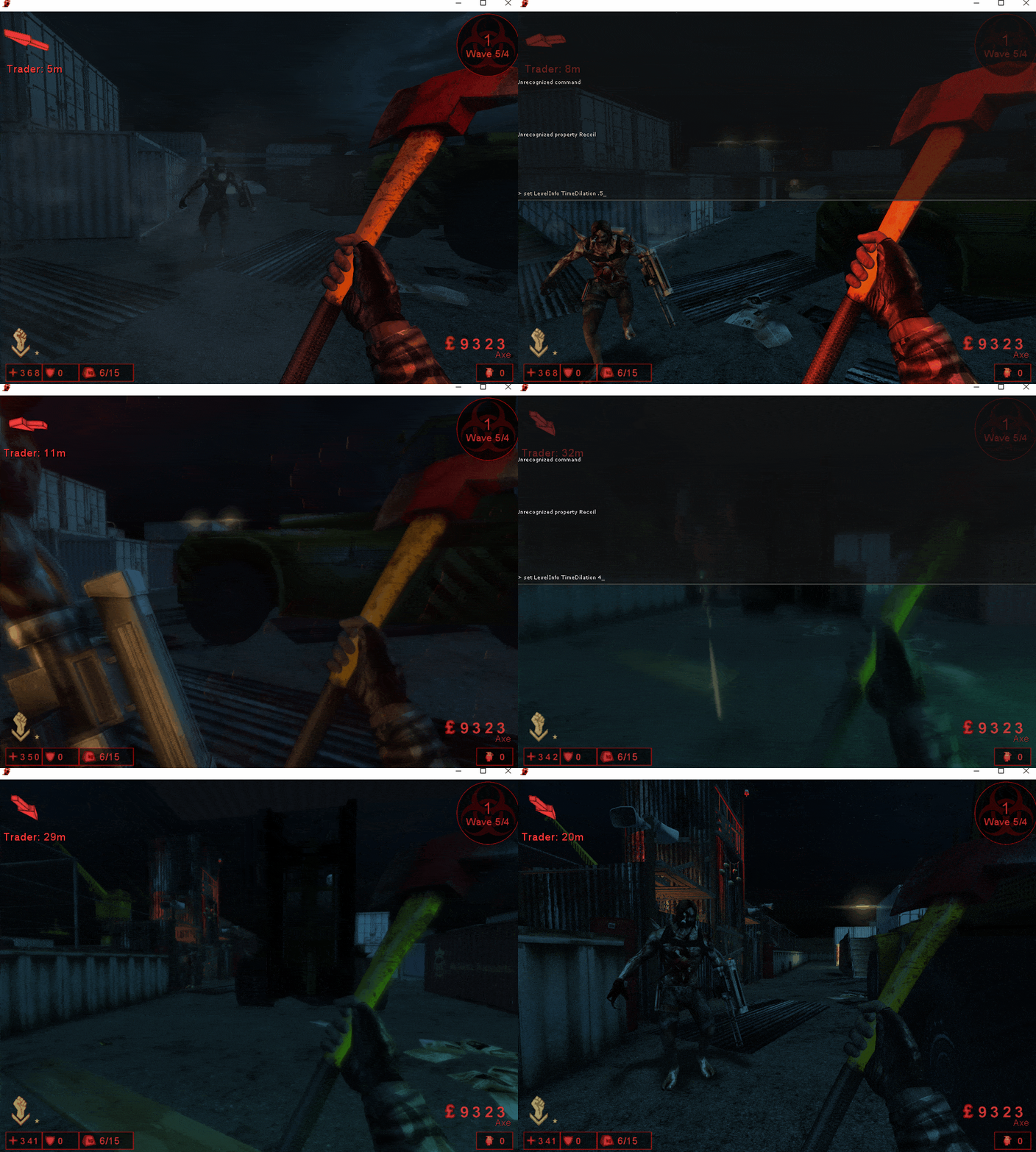
To find TimeDilation, I avoided searching for 1.0 and instead used a unique number (1.33737). By searching for that exact float, I cut through the garbage results. Then I performed a pointer scan on the memory address I found in Cheat Engine:
Finding the Real Eye Height
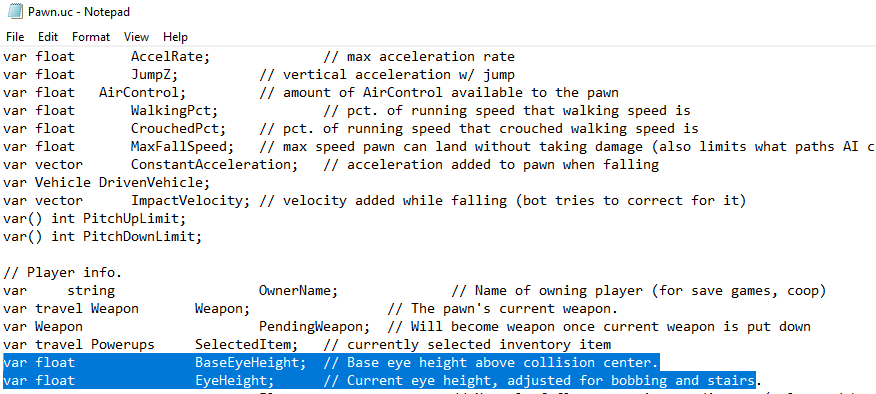
While reading the code for the Pawn class I noticed there were 2 eye height variables one for the base, and the other for the current height. This could make our Aimbot a little cleaner and actually return the real eye height rather than the base.
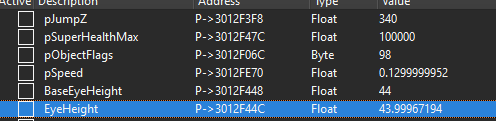
I renamed the Height variable I found to BaseEyeHeight and added EyeHeight as the next offset over:
Enumeration Using Ghidra and Cheat Engine
In this next section I loaded up Engine.dll in Ghidra and searched for AActor methods and unexpectedly found collision radius and height.
Finding pCollisionRadius and pCollisionHeight
I was looking into the physWalking() method and saw 2 AActor offsets being referenced.
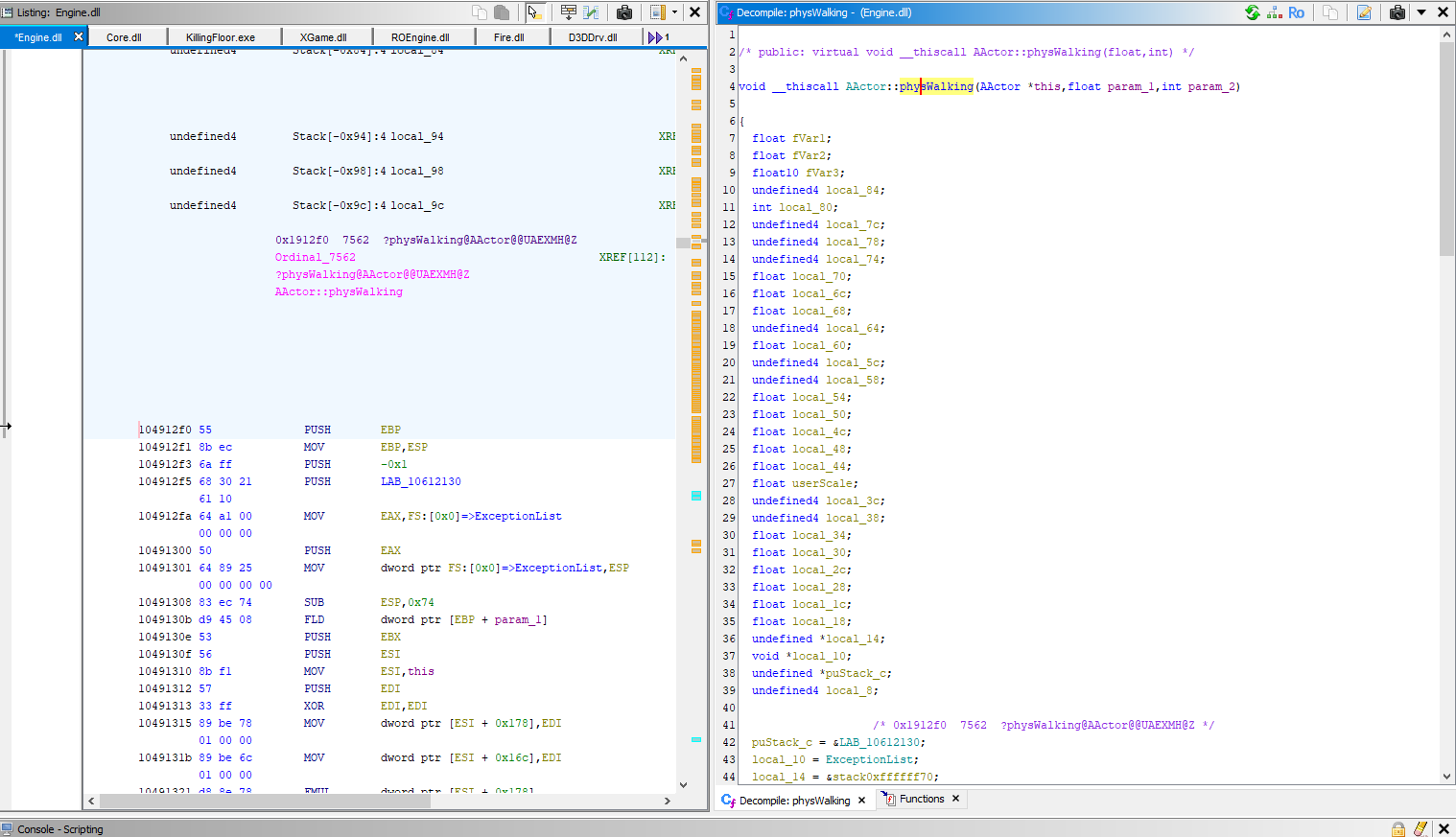
They were located right next to each other in memory and I had no clue what they were:
void  AActor::physWalking(float param_1,int param_2)
   ...
  local_43 = *(float *)&actor->field_0x2c0;
  local_44 = *(float *)&actor->field_0x2bc;
I then added them to my AActor class as unknown floats:
class AActor {
public:
    union {
		struct {
            char pad_0[0x2bc]; // Offset to the first variable
            float unknown1; // 0x2bc
            float unknown2; // 0x2c0
        };
    };
}
Messing with the Offsets on Enemy
CollisionHeight (unknown1)
I just added the following line to my InstaKill method in order to see what unknown1 did.
actor->unknown1 = 200.0f;
void Cheats::InstaKill(std::vector<AActor*> actors) {

    if (AActors.empty()) {
        std::cout << "[!] No actors to instakill in map!" << std::endl;
        return;
    }

    for (AActor* actor : actors) {
        if (actor->health != 1) {
            actor->health = 1;
        }
		actor->unknown1 = 200.0f;
    }
}
When I set the unknown1 variable to 200.0f they are suspended above the world walking.
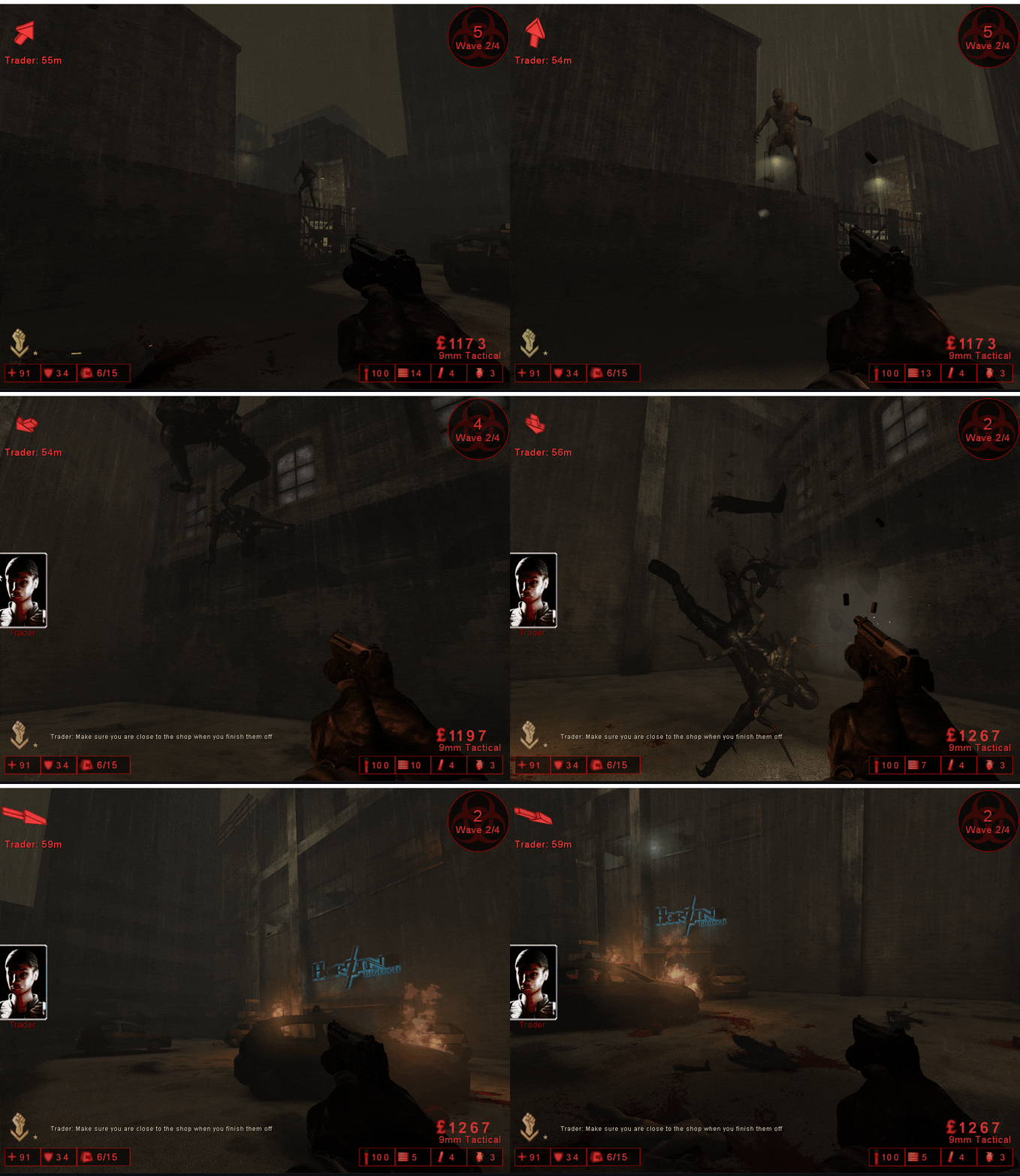 When I set the
 unknown1 variable to -200.0f they disappear under the map
actor->unknown1 = -200.0f;
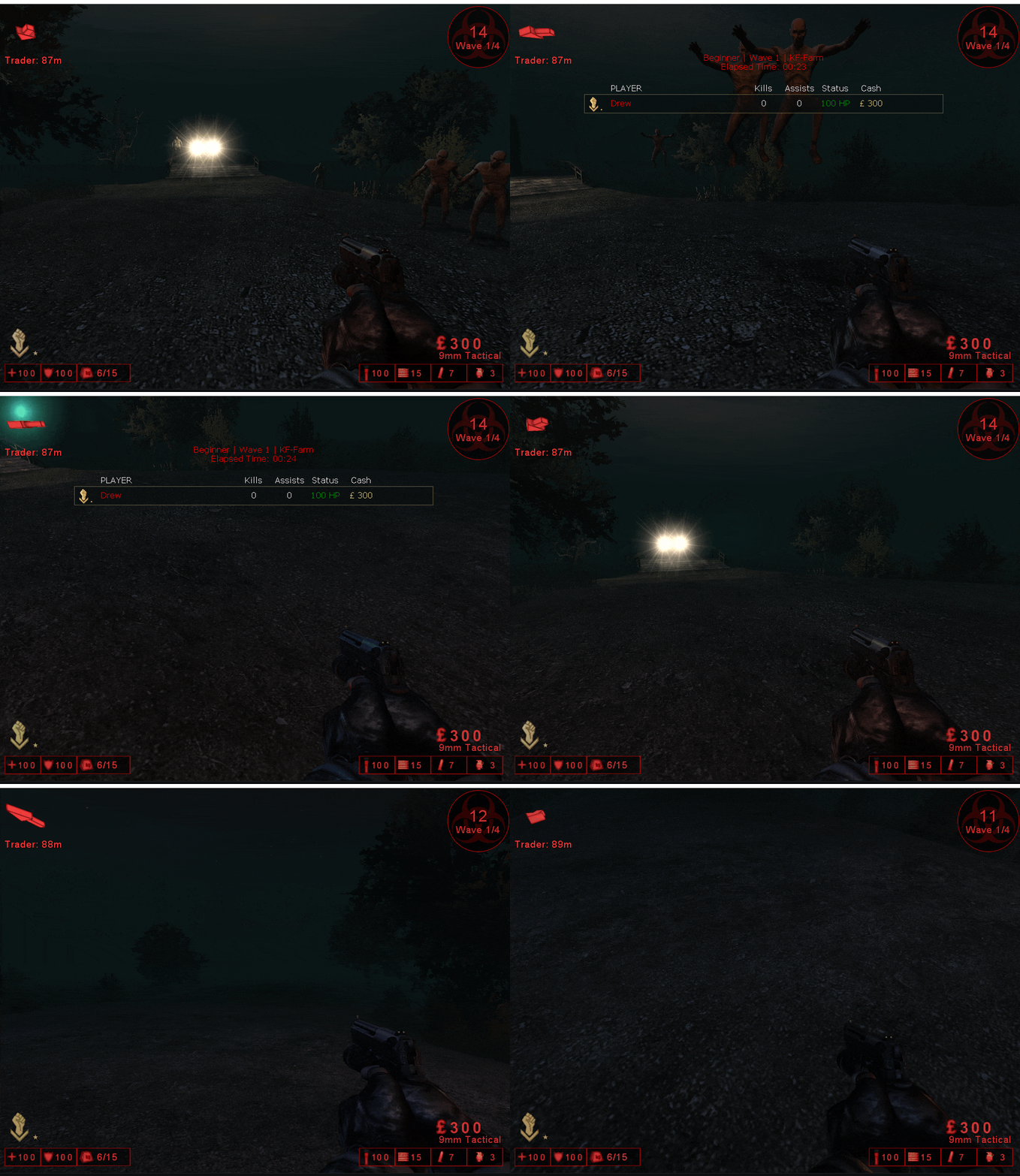 Considering how both values affected the Z axis of the entities I’m assuming this is some type of height modifier.
CollisionRadius (unknown2)
I then applied the following code to modify unknown2:
actor->unknown2 = -200.0f;
This result in the AActors repeatable hopping towards me:
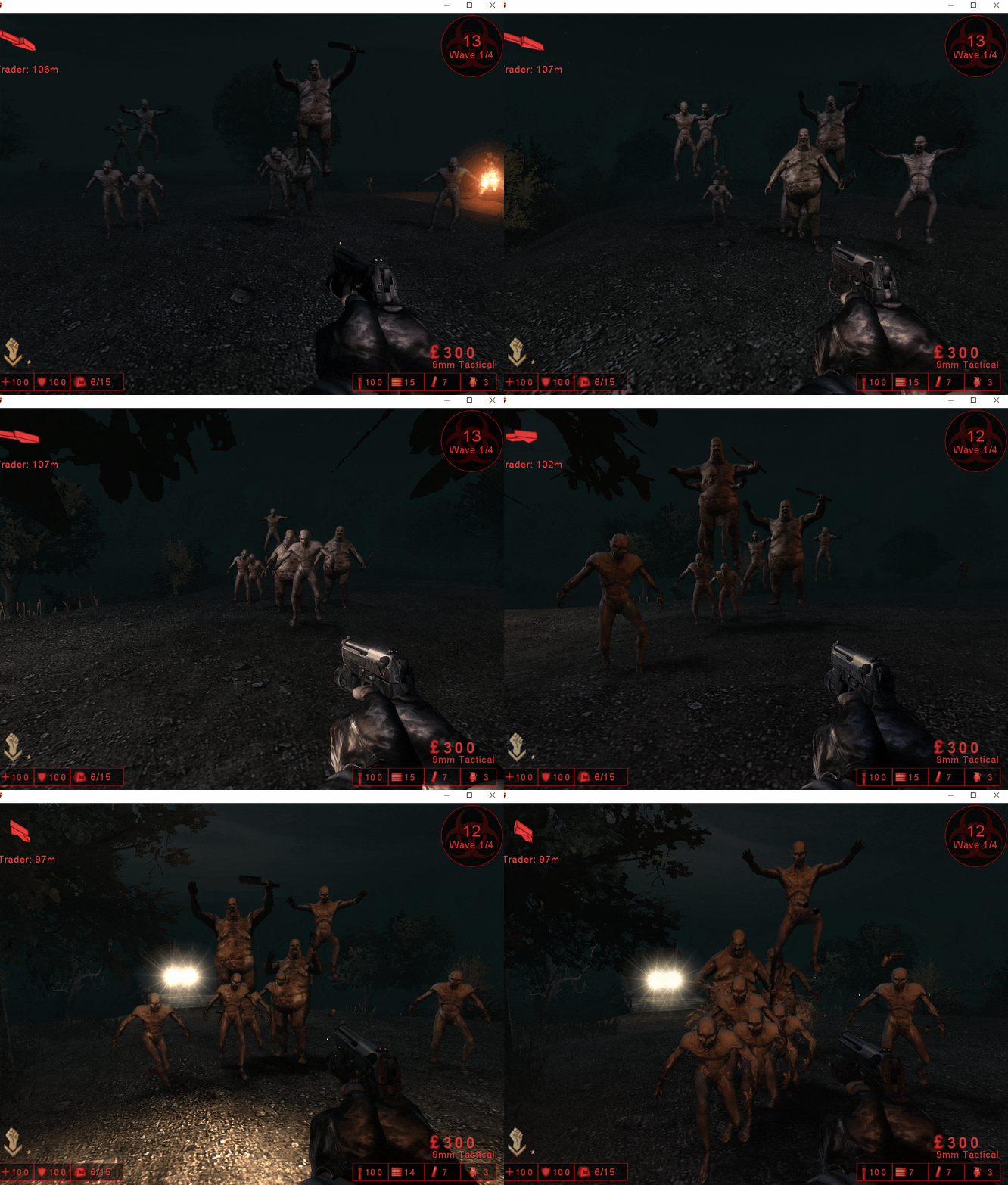
Then I used the following code to set the unknown2 to 200.0f.
actor->unknown2 = 200.0f;
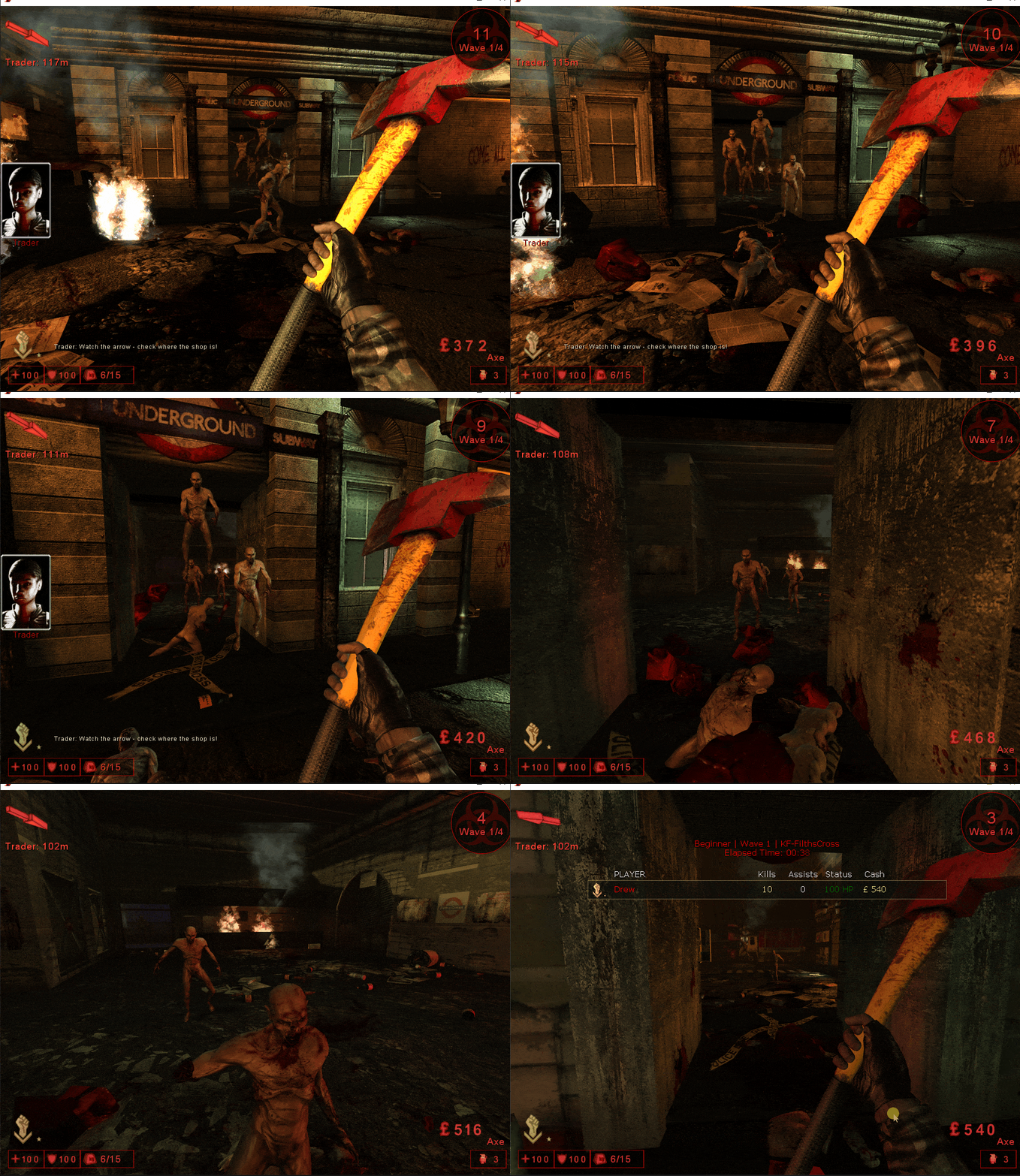
This is when I started to realize this is a collision related float, not only could I hit the enemies from far away, but I also got stuck on them, meaning its not just a hitbox. unknown1 is CollisionHeight because it makes modifications to the AActors Z axis, unknown2 is CollisionRadius.
Creating the Classes in C++
Now that we have mapped out a bunch of offsets, lets actually map them to our code so we can use them!
Weapon
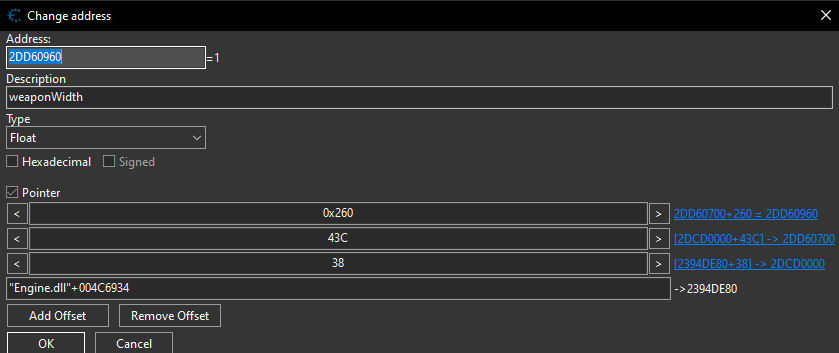
We use unions and structs so we don’t have to perform weird padding math between each large offset gap. A union tells the compiler to align the start of every internal struct to the base memory address of the object (0x0). We then declare a padding member (an array of bytes) at the beginning of each struct. The size of this array matches the offset we found in Cheat Engine, ‘pushing’ our variable to the exact right spot in memory without having to define every single variable in between.
Offset For Weapon Width:
#pragma once
class Weapon {
public:
    union {
        // --- Visuals
        struct {
            char pad_scale[0x260];
            float weaponWidth;   // 0x260
            float weaponHeight;  // 0x264
            float weaponDepth;   // 0x268
            float weaponScale;   // 0x26C
        };

        struct {
            char pad_zoom[0x514];
            float weaponZoom;    // 0x514
        };

        struct {
            char pad_reload[0x5B0];
            float reloadSpeed;   // 0x5B0
        };
    };
};
AActor
Below is the complete AActor class, note we still are utilizing the same union struct trick in order to avoid performing math for each offset:
#pragma once
#include "Enums.h"

class Weapon;

class AActor {
public:
    // Using a single union in the base class ensures all offsets are
    // calculated from the same starting address (0x0)
    union {
        // --- Core Engine (0x00 - 0x100) ---
        struct { char pad_brush[0x40]; bool isBrush; };
        struct { char pad_physics[0x74]; PHYS physics; };
        struct { char pad_level[0x9C]; ULevel* Level; };

        // --- Transformation (0x100 - 0x200) ---
        struct { char pad_loc[0x14C]; float y, x, z; };
        struct { char pad_rot[0x158]; int Pitch, Yaw, Roll; };

        // --- Rendering (0x200 - 0x300) ---
        struct { char pad_collision[0x2c0]; float collisionHeight, collisionRadius; };
        struct { char pad_drawSize[0x260]; float drawScale; };
        struct { char pad_3dSize[0x264]; float x3DDrawScale, y3DDrawScale, z3DDrawScale; };
        struct { char pad_glow[0x28C]; unsigned char glow; };

        // --- Controller & Interaction (0x300 - 0x400) ---
        struct { char pad_controller[0x360]; class AController* Controller; };
        struct { char pad_zjump[0x3F8]; float zJumpHeight; };

        // --- Health & Pawn Data (0x400 + ) ---
        struct { char pad_weapon[0x43C]; Weapon* currentWeapon; };
        struct { char pad_eyes[0x448]; float baseEyeHeight, eyeHeight; };
        struct { char pad_superMax[0x47C]; float superHealthMax; };
        struct { char pad_hp[0x480]; int health; };
        struct { char pad_head[0x494]; float headRadius, headHeight, headScale; };
        struct { char pad_brush[0xD78]; float weaponSway, weaponBob; };

        // --- Movement (0xE00+) ---
        struct { char pad_speed[0xE70]; float speed; };

    };
};
APawn
This hasn’t changed since the last tutorial, but I thought id include it:
#pragma once
#include "Enums.h"

class APawn : public AActor {
public:
    union {
        // --- Pawn Specific (Movement & Logic) ---
        struct { char pad_controller[0x360]; AController* Controller; };
    };
};
Gravity and Timescale
We will implement functions to resolve the multilevel pointer chains for gravity and timescale. The Cheats class will be updated to store the base address of Core.dll and provide dedicated float pointers for the engine variables. We will also include local float values to store user-defined overrides, managed through specific getter and setter methods to ensure memory safety.
Cheats.h:
#pragma once
#include <Windows.h>
#include <iostream>
#include <vector>
#include <d3d9.h>
#include "MinHook/MinHook.h"
#include <algorithm>
#include "imgui/imgui.h"
#include "imgui/imgui_impl_dx9.h"
#include "imgui/imgui_impl_win32.h"

#pragma comment(lib, "d3d9.lib")
#pragma comment(lib, "libMinHook.x86.lib")

class AActor;
class APawn;
class ULevel;
class AController;

class Cheats {
private:
    uintptr_t engineModule = 0;
    uintptr_t coreModule = 0;

public:
	// Addresses for Pointers
    float* pTimescale;
    float* pGravity;
    // Values we will set them too
    float timescale;
    float gravity;

	// Fetch Pointers
    bool GetGravityPointer();
    bool GetTimescalePointer();
    // Set Values
    bool SetGravity();
    bool SetTimescale();
};

extern Cheats cheats;
Cheats.cpp:
// Fetch the Core DLL Module Base
bool Cheats::GetModules() {
    engineModule = (uintptr_t)GetModuleHandleA("Engine.dll");
    coreModule = (uintptr_t)GetModuleHandleA("Core.dll");
    return engineModule != NULL && coreModule != NULL;
}

// Load the Gravity pointer we found
bool Cheats::GetGravityPointer() {
    if (coreModule == NULL) return false;
    uintptr_t basePtr = *(uintptr_t*)(coreModule + 0x00168008);
    if (!basePtr) return false;
    uintptr_t secondPtr = *(uintptr_t*)(basePtr + 0x148);
    if (!secondPtr) return false;
    pGravity = (float*)(secondPtr + 0x3EC);
    return pGravity != nullptr;
}

// Set custom gravity value
bool Cheats::SetGravity() {
    if (pGravity == nullptr) return false;
    *pGravity = gravity;
    return true;
}

// Load the Timescale pointer we found
bool Cheats::GetTimescalePointer() {
    if (coreModule == NULL) return false;
    uintptr_t basePtr = *(uintptr_t*)(coreModule + 0x00168008);
    if (!basePtr) return false;
    uintptr_t secondPtr = *(uintptr_t*)(basePtr + 0x98);
    if (!secondPtr) return false;
    pTimescale = (float*)(secondPtr + 0x434);
    return pTimescale != nullptr;
}

// Set custom timescale value
bool Cheats::SetTimescale() {
    if (pTimescale == nullptr) return false;
    *pTimescale = timescale;
    return true;
}

void Cheats::Start() {
    if (!CreateHook()) {
        return;
    }
    timescale = 2;
    gravity = -500;
    while (!bCanUnload) {

        if (pGravity == nullptr) {
            if (!GetGravityPointer()) {
                std::cout << "[DEBUG] Failed to fetch gravity pointer" << std::endl;
            }
            else {
                std::cout << "[DEBUG] Fetched gravity pointer: " << std::hex << pGravity << std::endl;
            }
        }

        if (pTimescale == nullptr) {
            if (!GetTimescalePointer()) {
                std::cout << "[DEBUG] Failed to fetch timescale pointer" << std::endl;
            }
            else {
                std::cout << "[DEBUG] Fetched timescale pointer: " << std::hex << pTimescale << std::endl;
            }
        }


        std::cout << "[DEBUG] Waiting for cheats to be unloaded..." << std::endl;

        if (GetAsyncKeyState(VK_END) & 1) {
            break;
        }

        Sleep(1000);
    }
    std::cout << "[DEBUG] Unloading!" << std::endl;
    Cleanup();
}
In my next post I will be creating a nice ImGui menu to edit all of these modifiers along.